If you have ever customized your theme and seen an update erase all your changes, you already know why the child theme WordPress (or child theme). A child theme is a theme that inherits all the design and functionality of another theme (the parent) and allows you to modify only what you want to change: some styles, a template, some functions. The beauty of the invention is that your changes live in a separate folder, so that when the parent theme is updated (and it must be updated, for security and compatibility), your customizations remain intact. It is the official WordPress mechanism for customizing third-party themes, and creating it literally costs two files and five minutes. In this guide, we see what exactly a child theme is, when you really need it (and when not), how to create it step by step with the complete code, how the template hierarchy that makes it possible works, and the typical errors to avoid from the beginning.
What is a child theme and how inheritance works
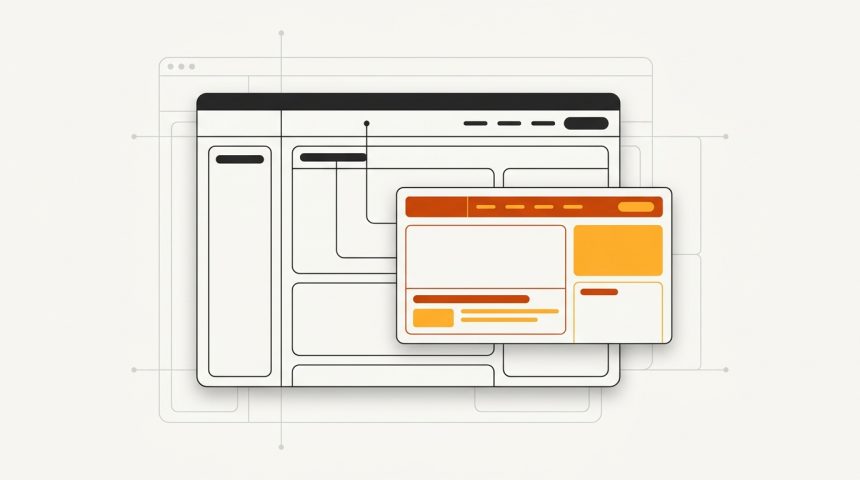
A child theme is a folder inside of wp-content/themes which declares, through a line in its stylesheet, that its parent is another installed theme. From that declaration, WordPress applies a simple and powerful rule:
- For PHP templates: if the file exists in the child, the child's is used; if not, the parent's is used. Copying
header.phpfrom the parent to the child and editing it there replaces the header without touching the original. - For styles and functions: are not replaced, they are added. The
functions.phpof the child is loaded additionally of the parent (and before), and the child's CSS is enqueued alongside the parent's to overwrite specific rules.
The practical result: the parent theme remains the engine (and can be updated normally), while the child acts as a thin layer with your differences. Updating the parent never touches the child's folder, so your changes survive any update.
When you need a child theme (and when not)
Not every customization justifies a child theme. The dividing line is clear:
Yes, you need a child theme if…
- You are going to edit theme files: PHP templates, or CSS beyond a few adjustments.
- You want to add design-related functions (register an extra menu, a widget area, image sizes).
- You maintain client websites where updates must be able to be applied without fear.
You don't need it if…
- You only want some CSS tweaks: el campo “CSS adicional” del personalizador (o de los estilos globales en temas de bloques) los guarda en la base de datos, a salvo de actualizaciones.
- Your change is pure functionality (a shortcode, a WooCommerce setting, a tracking snippet): that belongs to a plugin or a snippet manager like WPCode, because it must also survive a theme change.
- You use a modern block theme and all your changes fit in the site editor: modifications made there are already saved in the database.
The golden rule: design that touches theme files, to the child theme; functionality independent of design, to a plugin. And if you are still choosing a theme, do it also thinking about this: a good, well-maintained theme deserves the small investment of creating a child before customizing. In our guide on how to choose the perfect theme for your WordPress website we review what signals distinguish a solid theme.
How to create a WordPress child theme step by step
Let's create a child theme for an example parent theme; we will use Astra, but the process is identical for any classic theme: only the parent's identifier changes. You need access to the files (SFTP or the hosting manager) or, locally, your file explorer.
Step 1: Create the folder
Inside of wp-content/themes, create a new folder. By convention, the parent's name is used with the suffix -child:
wp-content/themes/astra-child/
├── style.css
└── functions.php
Step 2: Create style.css with the header
The file style.css is mandatory and its comment header is what turns the folder into a theme. The critical line is Template: it must contain the exact name of the parent theme's folder (case-sensitive):
/*
Theme Name:   Astra Child
Theme URI:    https://biblioweb.es/
Description:  Tema hijo de Astra para personalizaciones seguras
Author:       BiblioWeb
Author URI:   https://biblioweb.es/
Template:     astra
Version:      1.0.0
Text Domain:  astra-child
*/

/* A partir de aquí, tus estilos personalizados. */
Step 3: Enqueue the styles in functions.php
Contrary to what was done in the past (with @import, today deprecated due to slowness), the parent's stylesheet is loaded with correct enqueuing from functions.php:
<?php
/**
 * Encolar la hoja de estilos del tema padre y la del hijo.
 */
add_action( 'wp_enqueue_scripts', 'astra_child_enqueue_styles' );
function astra_child_enqueue_styles() {
    // Estilos del padre.
    wp_enqueue_style(
        'astra-parent-style',
        get_template_directory_uri() . '/style.css',
        array(),
        wp_get_theme( get_template() )->get( 'Version' )
    );
    // Estilos del hijo, cargados después para poder sobrescribir.
    wp_enqueue_style(
        'astra-child-style',
        get_stylesheet_directory_uri() . '/style.css',
        array( 'astra-parent-style' ),
        wp_get_theme()->get( 'Version' )
    );
}
Notice the detail of the two twin functions: get_template_directory_uri() always points to the parent y get_stylesheet_directory_uri() to the child. Confusing them is the source of half the problems with child themes. Note: some themes (Astra among them) already enqueue their styles so that the child loads automatically; if you see duplicated styles, simplify enqueuing by leaving only the child's stylesheet with the appropriate dependency.
Step 4: activate and check
Go to Appearance → Themes: verás “Astra Child” como un tema más. Actívalo. La web debe verse exactamente igual que con el padre; si se ve sin estilos, revisa el valor de Template and enqueuing. With this, your WordPress child theme is now active and ready to receive customizations. Optionally, add an image screenshot.png (1200×900) to the child's folder so it displays a thumbnail in the selector.
Step 5 (optional): override templates
To modify a parent template, copy it to the child respecting its relative path and edit it there. For example, to customize the single post template, copy single.php from the parent to the child's root; for a template within subfolders (common in WooCommerce), respect the structure: woocommerce/single-product.php. WordPress will automatically use your copy.
What to customize from the child theme: useful examples
With the structure set up, the child becomes your safe workspace. Some common uses:
Custom styles
/* En style.css del hijo */
.site-title {
    font-size: 2.2rem;
    letter-spacing: -0.02em;
}
.entry-content a {
    text-decoration: underline;
    text-underline-offset: 3px;
}
Design-linked functions
// En functions.php del hijo: registrar un menú adicional.
add_action( 'after_setup_theme', 'astra_child_menus' );
function astra_child_menus() {
    register_nav_menu( 'menu-legal', 'Menú legal del pie' );
}

// Un tamaño de imagen a medida para tarjetas del blog.
add_action( 'after_setup_theme', 'astra_child_image_sizes' );
function astra_child_image_sizes() {
    add_image_size( 'tarjeta-blog', 600, 400, true );
}
Remember the criterion from the previous section: if the snippet does not depend on the design (analytics, redirects, behavior settings), do not put it in the functions.php of the child; move it to its own plugin or a snippet manager, so it survives a future theme change. Many of the essential WordPress plugins exist precisely so you don't have to put everything in the theme.
Common errors with child themes
- Misspelled Template. If
Template: astrano coincide exactamente con el nombre de la carpeta del padre, WordPress mostrará el hijo como “roto”. Es el fallo número uno. - Using @import in CSS. It works, but it serializes downloads and penalizes speed. Always enqueue from
functions.php. - Copying too many templates. Each template copied to the child stops receiving improvements that the parent incorporates in its updates. Copy only what you are actually going to modify, and review your copies when the parent publishes major changes.
- Confusing functions.php. El del hijo no sustituye al del padre: ambos se cargan. Si declaras una función con el mismo nombre que una del padre no “la sobrescribes”: provocas un error fatal, salvo que el padre la haya envuelto en
function_exists(). - Creating the child after customizing the parent. The correct order is: install parent, create child, activate child, and only then customize. Customizer settings are saved per theme, so activating the child may require reconfiguring some options (or migrating them with a settings export plugin).
- Editing without a backup. A PHP syntax error in
functions.phpcrashes the website. Edit via SFTP (never from the desktop file editor in production) and have a recent backup to quickly undo changes.
Child themes and block themes: the nuance of 2026
With block themes (Full Site Editing), much of the classic customization (headers, footers, templates) is done visually in the site editor and saved in the database, not in files. This reduces the cases where a child theme is essential, but it doesn't retire it: it's still the correct way to add structured CSS, modify theme.json (the theme's global style settings, which the child can also override), register custom patterns, or modify the parent's HTML templates. The inheritance mechanism works the same: same style.css with its Template, and the child's templates (in the templates/) have priority over those of the parent. The complete reference is in the official child themes manual from developer.wordpress.org.
Frequently Asked Questions
Does a child theme affect WordPress performance?
The impact is negligible: an additional stylesheet (often tiny) and a functions.php extra. Well-built, with correct enqueuing and without @import, a child theme does not measurably slow down the website.
Can I create a child theme of a child theme?
No. WordPress only supports one level of inheritance: a child cannot be the parent of another theme. If you need variants, work with a single, well-organized child or consider a different approach (custom templates, customization plugin).
What happens if I change the parent theme?
The child is tied to its specific parent: if you activate another theme, the child stops working as is. Styles and templates are rarely transferable (they depend on the parent's classes and structure), but design-independent functions are, another reason to keep them in a plugin and not in the theme.
Are there plugins that create the child theme for me?
Yes, plugins like Child Theme Configurator generate the structure with one click and even migrate customizer settings from parent to child. They are a legitimate option if you don't want to touch files, although as you've seen, the manual process involves two files and five minutes, and understanding it will help you every time something doesn't add up.
Conclusion
The WordPress child theme is one of those small pieces that define the difference between customizing well and customizing with an expiration date. Two files (style.css with its header and functions.php with enqueuing) are enough to separate your changes from the original theme and protect them from updates. The rules for not making mistakes fit into three lines: create the child before customizing, copy only the templates you actually modify to the child, and reserve the functions.php of the theme for design functions, leaving general functionality to plugins. If your website uses a third-party theme and you plan to touch a single line of its files, don't hesitate: set up the child theme today. It's the most profitable five-minute investment in the WordPress ecosystem.