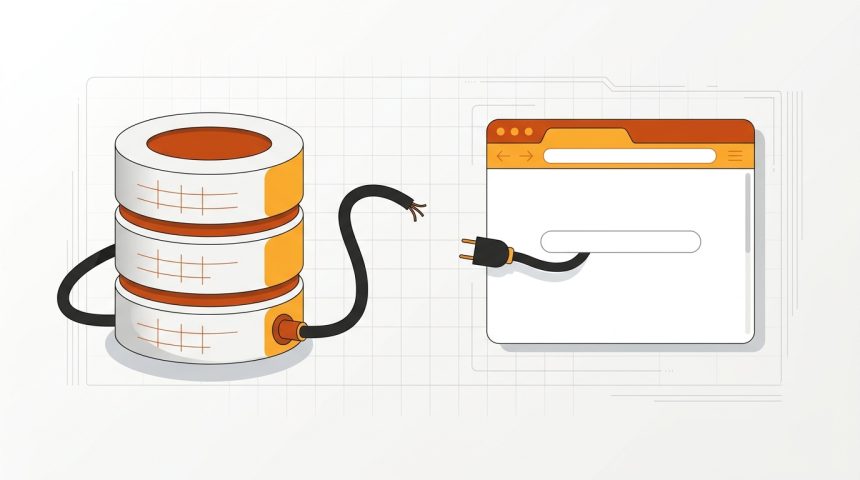
El mensaje “error al establecer conexión con la base de datos” es de los pocos que WordPress muestra sin rodeos: la web entera desaparece y en su lugar queda esa frase sobre fondo blanco, tanto para tus visitantes como para ti. Significa exactamente lo que dice: el código PHP de WordPress no consigue comunicarse con la base de datos MySQL o MariaDB donde viven tus entradas, páginas, usuarios y ajustes. Sin esa conexión no hay nada que mostrar. Las causas caben en cuatro grupos —credenciales incorrectas en wp-config.php, servidor de base de datos caído o saturado, base de datos corrupta y, con menos frecuencia, disco lleno o un ataque—, y todas tienen solución sin perder contenido. En esta guía las revisamos en orden, del diagnóstico rápido a la reparación, con los fragmentos de configuración exactos que necesitas tocar.
Qué significa el error al establecer conexión con la base de datos
WordPress está dividido en dos mitades: los archivos PHP (el motor) y la base de datos (el contenido). En cada visita, PHP se conecta a MySQL usando cuatro datos guardados en el archivo wp-config.php: nombre de la base de datos, usuario, contraseña y servidor. Si cualquiera de los cuatro es incorrecto, o si el servidor de base de datos no responde, la conexión falla y aparece el error.
Primer diagnóstico en 30 segundos: intenta abrir tudominio.com/wp-admin.
- Si ahí ves un mensaje distinto, del tipo “una o más tablas de la base de datos no están disponibles”, la conexión funciona pero la base de datos está corrupta: salta directamente a la sección de reparación.
- Si ves el mismo error de conexión en todas partes, el problema está en las credenciales o en el servidor: sigue en orden.
Y una pregunta clave antes de tocar nada: ¿qué cambió justo antes? ¿Migraste la web, cambiaste la contraseña del hosting, instalaste algo? El error rara vez aparece solo; en los common errors when installing WordPress, equivocarse con los datos de la base de datos ocupa el primer puesto.
Revisa las credenciales en wp-config.php
Conéctate por FTP o abre el gestor de archivos de tu hosting y localiza wp-config.php en la carpeta raíz de WordPress. Dentro verás cuatro constantes como estas:
/** El nombre de tu base de datos de WordPress */
define( 'DB_NAME', 'nombre_basedatos' );

/** Tu nombre de usuario de MySQL */
define( 'DB_USER', 'usuario_bd' );

/** Tu contraseña de MySQL */
define( 'DB_PASSWORD', 'contraseña_bd' );

/** Host de MySQL (casi siempre localhost) */
define( 'DB_HOST', 'localhost' );
Compara esos valores con los que muestra el panel de tu hosting (en cPanel: sección “Bases de datos MySQL”; en Plesk: “Bases de datos”). Los fallos típicos:
- Prefijos omitidos: en hosting compartido, el nombre real suele ser
usuario_nombre(por ejemploc1234_wp), no solowp. - Contraseña cambiada: si alguien regeneró la contraseña del usuario de MySQL desde el panel, wp-config.php sigue guardando la antigua. Crea una nueva desde el panel y actualiza la constante.
- DB_HOST incorrecto: en la mayoría de hostings es
localhost, pero algunos (IONOS, SiteGround en ciertos planes, servidores con MySQL separado) usan un host propio del estilodb5001234567.hosting-data.ioo una IP, a veces con puerto:127.0.0.1:3306. El valor correcto aparece en el panel del hosting.
Para comprobar las credenciales sin depender de WordPress, sube por FTP un archivo temporal test-db.php with this content and open it in your browser:
<?php
$conexion = mysqli_connect( 'localhost', 'usuario_bd', 'contraseña_bd', 'nombre_basedatos' );
if ( ! $conexion ) {
    die( 'Fallo de conexión: ' . mysqli_connect_error() );
}
echo 'Conexión correcta';
Si dice “Conexión correcta”, las credenciales están bien y el problema es otro (sigue leyendo). Si falla, el propio mensaje te orienta: “Access denied” apunta a usuario o contraseña incorrectos, y “Unknown database” a un nombre de base de datos equivocado. Delete this file as soon as you finish: contains your password in plain text.
Comprueba también que el usuario tiene permisos sobre la base de datos: en cPanel, en “Bases de datos MySQL”, el usuario debe aparecer asignado a la base con todos los privilegios. Tras una migración es habitual crear la base y el usuario pero olvidar vincularlos.
Check the database server
If the credentials are correct, the next suspect is the MySQL server itself:
- Server down: on a VPS you can verify it with
systemctl status mysql(ormariadb) and restart it withsystemctl restart mysql. In shared hosting, you don't have access: check the provider's status page or open a ticket. - Saturation due to traffic or queries: a spike in visits, a plugin with heavy queries, or a brute-force attack against
wp-login.phpcan exhaust available connections. The error appears intermittently and disappears on its own: this is the typical pattern. The fundamental solution is caching, optimization, and, if it recurs, a hosting plan with more resources. - Full disk: if the server cannot write, MySQL may refuse to work. Check disk usage in the panel: giant logs and accumulated backups are the usual culprits for filling it up.
- phpMyAdmin as a thermometer: if phpMyAdmin opens and shows your tables, the server is alive and the problem is with credentials or corruption. If phpMyAdmin also doesn't connect, the server is down and the ball is in the hosting provider's court.
Repair a corrupted database
Tables can become corrupted due to an unexpected server restart, a problematic disk, or interrupted writes. WordPress includes an integrated repair mode. Activate it by adding this line to wp-config.php, justo encima de la línea “¡Eso es todo, deja de editar!”:
define( 'WP_ALLOW_REPAIR', true );
Then visit this address in your browser:
https://tudominio.com/wp-admin/maint/repair.php
Verás dos botones: “Reparar base de datos” y “Reparar y optimizar”. Usa el primero (el segundo tarda bastante más). Al terminar, remove the line from wp-config.php: that repair page does not ask for a password and should not remain accessible.
La alternativa manual es phpMyAdmin: selecciona la base de datos, marca todas las tablas y en el desplegable inferior elige “Reparar tabla”. Verás además qué tabla concreta estaba dañada. Antes de reparar nada, si el hosting te lo permite, exporta una copia de la base de datos tal cual está: incluso corrupta, es tu red de seguridad si algo va a peor.
Other causes: migrations, hacks, and damaged wp-config
- You just migrated the website: 90% of post-migration connection errors are a wp-config.php that still points to the old server's database, or a different DB_HOST with the new provider. Review the four constants with the new hosting data.
- The site URL changed: this does not cause the connection error, but it is often confused; if the website loads without styles or redirects incorrectly after migrating, the problem is different (siteurl and home in the options table).
- Attack or infection: there is malware that modifies wp-config.php or deletes tables. If you find strange code in the file, admin users you didn't create, or missing tables, treat the incident as a hack: we guide you in the guide to cleaning a hacked WordPress and in the tricks to strengthen your WordPress security.
- Restore backup: if you have a recent database backup, importing it from phpMyAdmin (delete damaged tables first) is often the fastest way when repair doesn't work.
Quick checklist
- Is the same error seen in
/wp-admin? If the message talks about repairing, go straight to repair mode. - What changed just before the failure? (migration, passwords, plugins, updates).
- Verify DB_NAME, DB_USER, DB_PASSWORD, and DB_HOST against the hosting panel.
- Test the connection with the test-db.php script (and delete it afterwards).
- Confirm that the MySQL user has privileges on the database.
- Does phpMyAdmin connect? If not, contact hosting: the server is down.
- Repair tables with WP_ALLOW_REPAIR and remove the constant when finished.
- If nothing works, restore the last backup and strengthen security.
How to prevent the next scare
Once the website is recovered, dedicate ten minutes to preventing it from recurring. Schedule automatic backups that include the database — a daily database backup and weekly file backup is a good starting point — and check occasionally that these backups can actually be restored. Activate page caching to drastically reduce the number of queries reaching MySQL: a cached website can withstand traffic spikes that would bring down the same website without caching. Limit login attempts so that bots don't consume connections, and perform periodic database cleanup (revisions, expired transients, tables of deleted plugins), because a lighter database repairs faster and corrupts less. Finally, write down the current database credentials in a safe place: half the time lost to this error is spent searching for where they were.
Frequently Asked Questions
Have I lost my content if this error appears?
Almost never. The error means that WordPress cannot communicate with the database, not that the database has disappeared. Once credentials are corrected or tables are repaired, all content returns. Actual loss only occurs in severe disk failures without a backup, and that's what the backup is for.
Why does the error appear and disappear intermittently?
That intermittent pattern points to an overloaded MySQL server: too many simultaneous connections due to a traffic spike, a heavy plugin, or bots attacking the login. Mitigate with page caching, block bots, and if it persists, you need more hosting resources.
Does the error establishing a database connection affect SEO?
If it lasts minutes, no. If it lasts days, Google will end up de-indexing pages that return an error. That's why it's advisable to fix it soon and, for long planned outages, serve a 503 maintenance code instead.
Can a plugin cause this error?
It's rare directly, but a plugin can saturate MySQL with massive queries or corrupt its own tables. If the error coincides with the installation of a specific plugin, deactivate it by renaming its folder via FTP and observe if the problem ceases.
Conclusion
The error establishing a database connection is scary because it takes down the entire website, but its diagnosis is one of the most systematic in WordPress: credentials, server, corruption, and in that order. With the four wp-config.php constants verified against the hosting panel, the connection test script, and the integrated repair mode, the vast majority of cases are resolved in less than an hour and without any loss of content. The two lessons to take away: always keep a recent backup of the database, because it turns the worst-case scenario into a mere formality, and when the error is intermittent, don't ignore it: it's a warning that your hosting is becoming too small or that someone is knocking too hard at your door.