Pocas acciones de mantenimiento tienen una relación esfuerzo-beneficio tan buena como actualizar PHP en WordPress. PHP es el lenguaje en el que está escrito WordPress y el motor que ejecuta cada página de tu web; cada versión nueva trae mejoras de velocidad medibles y, sobre todo, parches de seguridad que las versiones antiguas dejan de recibir. Aun así, muchísimas webs siguen funcionando sobre versiones obsoletas por puro miedo: “si funciona, no lo toques”. Ese miedo tiene algo de fundamento —un plugin antiguo puede romperse con un PHP moderno—, pero se gestiona con método, no con inmovilismo. En esta guía vamos a ver cómo comprobar qué versión usas, cómo verificar la compatibilidad de tu tema y tus plugins antes de tocar nada, cómo hacer el cambio desde el panel de tu hosting en un par de clics y qué revisar después para confirmar que todo sigue en su sitio. Y, si algo falla, cómo volver atrás sin dramas.
Por qué merece la pena actualizar PHP
Hay tres razones de peso, y las tres son medibles:
- Velocidad: cada rama de PHP desde la 7.0 ha mejorado el rendimiento de forma notable. Una web WordPress sobre PHP 8.2 u 8.3 sirve bastantes más peticiones por segundo que la misma web sobre PHP 7.4, sin cambiar ni una línea de código. Es rendimiento gratis.
- Security: PHP mantiene cada versión con parches de seguridad durante un tiempo limitado. Cuando una rama llega a su fin de vida (end of life), las vulnerabilidades que se descubran ya no se corrigen nunca. Puedes consultar el calendario oficial de soporte en php.net/supported-versions: a día de hoy toda la rama 7.x y la 8.0 están fuera de soporte.
- Compatibilidad futura: WordPress, WooCommerce y los grandes plugins van subiendo poco a poco su requisito mínimo de PHP. Quedarse atrás significa que tarde o temprano dejarás de poder actualizar el propio WordPress, y una web sin actualizaciones es una web vulnerable.
Dicho en corto: una versión de PHP antigua te hace ir más lento hoy y te condena a un problema mayor mañana.
Paso 1: comprueba qué versión de PHP usa tu WordPress
No hace falta tocar el servidor para averiguarlo. Desde el panel de administración, entra en Herramientas → Salud del sitio → Información → Servidor: ahí verás la versión exacta de PHP junto a otros datos del entorno. La propia pantalla de Salud del sitio te avisará con una recomendación destacada si tu versión está obsoleta.
Como referencia rápida para interpretar lo que veas:
| Versión | Estado | Qué hacer |
|---|---|---|
| PHP 7.4 o inferior | Sin soporte desde hace años | Actualizar cuanto antes |
| PHP 8.0 | Fin de vida alcanzado | Actualizar pronto |
| PHP 8.1 | Solo parches de seguridad, cerca del final | Planificar el salto |
| PHP 8.2 / 8.3 | Soporte activo o de seguridad amplio | Zona recomendada |
El punto dulce para WordPress hoy es PHP 8.2 u 8.3: rendimiento excelente y compatibilidad ya muy madura en el ecosistema de plugins. Las versiones más recientes acabadas de publicar conviene dejarlas reposar unos meses, porque los plugins tardan en ponerse al día.
Paso 2: verifica la compatibilidad antes del cambio
Aquí es donde se evita el 95 % de los sustos. Antes de cambiar la versión, dedica veinte minutos a esta lista:
- Actualiza todo lo actualizable: WordPress, tema y plugins a su última versión. La mayoría de incompatibilidades con PHP moderno están ya corregidas en versiones recientes de cada plugin; el problema suele estar en ir atrasado.
- Revisa los plugins abandonados: entra en la ficha de cada plugin en el directorio de WordPress.org y mira la línea “Probado hasta” y la fecha de última actualización. Un plugin sin actualizaciones desde hace tres o cuatro años es el candidato número uno a romperse; busca un sustituto mantenido antes de seguir.
- Consulta la documentación del tema: los temas comerciales serios indican en su changelog qué versiones de PHP soportan.
- Make a full backup (ficheros y base de datos). El cambio de PHP es reversible, pero la copia es tu red de seguridad universal.
- Si tu hosting ofrece staging, úsalo: clona la web, cambia PHP en el clon y navega por ella. Es la prueba definitiva sin riesgo alguno.
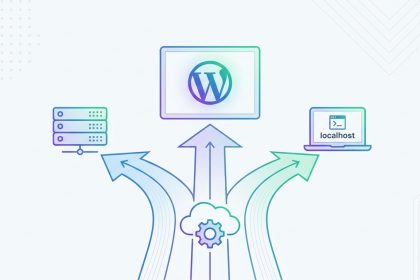
Elegir un hosting que ofrezca staging y cambio de versión de PHP por panel es media batalla ganada en este tipo de tareas; si el tuyo no lo permite, quizá toque replantearlo con nuestra guía sobre what hosting you need for WordPress.
Cómo actualizar PHP en WordPress desde el panel del hosting
La versión de PHP no se cambia desde WordPress, sino desde el panel de control del hosting. La buena noticia es que en casi todos los proveedores es un desplegable y un botón. Así se hace en los paneles más comunes:
En cPanel
- Entra en cPanel y busca “Select PHP Version” o “MultiPHP Manager” (según el proveedor verás uno u otro).
- En MultiPHP Manager, marca tu dominio, elige la versión nueva en el desplegable y pulsa Aplicar.
- El cambio es inmediato: abre tu web en otra pestaña y comprueba que carga.
En Plesk
- Go to Sitios web y dominios, selecciona tu dominio y entra en Configuración de PHP.
- Elige la versión en el desplegable superior y guarda. Plesk permite además ajustar en la misma pantalla límites como
memory_limitomax_execution_time.
En hostings con panel propio (IONOS, SiteGround, Webempresa…)
Los proveedores con panel a medida agrupan esta opción bajo nombres como “Configuración PHP”, “Versión de PHP” o “Ajustes del sitio web”. El patrón es siempre el mismo: localizar el dominio, elegir versión en un desplegable y confirmar. Si no encuentras la opción, el soporte del hosting hace el cambio por ti en minutos; es una de las peticiones más habituales que reciben.
Un consejo si vienes de una versión muy antigua: no hace falta escalar peldaño a peldaño por cada versión intermedia, pero sí conviene ser prudente. Salta directamente a PHP 8.2, comprueba, y solo después plantéate 8.3 o superior. Así, si aparece un problema, sabes exactamente qué salto lo causó.
Paso 3: qué revisar después de actualizar
Hecho el cambio, dedica diez minutos a esta ronda de comprobaciones:
- Portada y páginas clave: home, una entrada del blog, la página de contacto y, si vendes online, todo el proceso de compra hasta el checkout.
- Panel de administración: entra en el escritorio, abre el editor, sube una imagen a la biblioteca de medios.
- Formularios: send a test from each form and confirm that the email arrives.
- Site Health: go back to Tools → Site Health and check that the new version is reflected and that no new critical errors have arisen.
- Error log: if you have access to the
error_logof the hosting, take a look. Warnings of type Deprecated don't break anything (they are warnings about functions that will disappear in the future), but the Fatal error they must be addressed immediately.
If everything responds, that's it: you've just gained speed and years of security support with a ten-minute change. In fact, the version upgrade combines wonderfully with other settings in the same environment: in our guide to speed up WordPress with PHP settings we explain how to squeeze OPcache and other parameters once you are on a modern version.
What to do if something breaks
First, calm down: the PHP version change is reversible in the same dropdown where you made it. The sensible protocol is this:
- Identify the symptom. Blank screen or 500 error? Temporarily activate debug mode by adding these lines to
wp-config.phpto see the specific error in a log file:
define( 'WP_DEBUG', true );
define( 'WP_DEBUG_LOG', true );
define( 'WP_DEBUG_DISPLAY', false );- Read the file
wp-content/debug.log: the fatal error will almost always indicate the path of the responsible plugin or theme in the trace itself. - Deactivate the culprit. If you can't access the panel, rename its folder inside
wp-content/plugins/via FTP and WordPress will deactivate it automatically. - Look for an alternative or update: if the broken plugin is abandoned, replace it with a maintained one. It's annoying, but that plugin was going to fail sooner or later anyway.
- If you need the website operational now, revert to the previous PHP version from the hosting panel and plan the change more calmly or in staging.
A particular case: if after the change, out-of-memory errors appear (Allowed memory size exhausted), it's not the fault of the version itself, but because the hosting's new PHP environment comes with a lower memory limit. It's fixed in two minutes following our guide to increase the PHP memory limit in WordPress.
Typical errors and warnings after the version jump
These are the most common messages when upgrading to PHP 8.x from older versions, and their real severity:
| Message | Severity | Common solution |
|---|---|---|
| Deprecated: Creation of dynamic property… | Low: just a warning | Update the plugin; it doesn't break the website |
| Fatal error: Uncaught TypeError… | High | Update or replace the plugin indicated in the trace |
| Call to undefined function… | High | A PHP extension is usually missing; activate it in the hosting panel |
| Allowed memory size exhausted | Medium | Upload memory_limit in the hosting or in wp-config.php |
Frequently Asked Questions
Can updating PHP affect my SEO?
Only for the better, as long as the website continues to function. The PHP version is not a direct ranking factor, but loading speed does influence Core Web Vitals, and the jump to PHP 8.x improves server response times. The only SEO risk would be leaving the website broken without realizing it: hence the subsequent round of checks.
How often should I check my PHP version?
Once a year is enough. PHP releases a major version every year and maintains each branch for about three years in total. A comfortable routine: check Site Health every January and plan the jump when your version enters its last year of support.
Can I update PHP with the website in production or do I need staging?
If you've done your homework from step 2 (everything updated, no abandoned plugins, and with a backup), the change in production is reasonably safe and instantly reversible. Staging is highly recommended for critical websites, online stores, or installations with many veteran plugins, because it allows you to discover problems without any visitor seeing them.
My hosting doesn't offer modern PHP versions, what do I do?
It's a serious sign that the provider doesn't maintain its platform. First, complain to support, and if there's no solution within a reasonable time, migrate: staying on a server with unsupported PHP is assuming a permanent security risk that no cheap fee compensates.
Conclusion
Updating PHP in WordPress is one of the few tasks that simultaneously improve the speed, security, and lifespan of your website, and the entire process —checking, changing, and verifying— fits into a quiet afternoon. The recipe is simple: confirm your version in Site Health, update theme and plugins, make a backup, change the version from the hosting panel, and dedicate ten minutes to checking that everything works. If something fails, the hosting's own dropdown allows you to revert while you locate the culprit plugin with debug mode. Stay in the recommended zone (today, PHP 8.2 or 8.3), review the support calendar once a year, and your WordPress will always run on solid ground: faster for your visitors and much less appealing to attackers.