Instalar un plugin de seguridad y dar por hecho que ya estás protegido es el error más repetido en WordPress. Un plugin vigila; una auditoría comprueba. Son cosas distintas, y solo la segunda te dice dónde estás realmente expuesto.
La buena noticia es que una auditoría de seguridad, que hace unos años exigía leer decenas de páginas de documentación, hoy se puede hacer con la inteligencia artificial como copiloto en una tarde. La mala es que hay una parte que la IA no debe decidir por ti, y conviene tenerla clara desde el principio.
Qué aporta la IA en una auditoría de seguridad (y qué no)
Conviene ser honesto antes de empezar, porque hay mucha promesa inflada sobre esto.
La IA es muy buena en:
- Leer un listado largo de plugins con sus versiones y decirte cuáles llevan años sin actualizarse.
- Traducir un aviso técnico de vulnerabilidad a un lenguaje que entiendas.
- Revisar un fichero de configuración y señalar líneas sospechosas.
- Priorizar: ordenar veinte hallazgos por riesgo real en lugar de dejarte una lista plana.
- Redactar el informe final para que puedas pasárselo a un cliente o a tu equipo.
La IA no debe hacer:
- Decidir si una vulnerabilidad te afecta. Eso se comprueba contra la base de datos oficial, no se pregunta.
- Confirmar que una web está limpia. Un modelo puede afirmarlo con toda seguridad y estar equivocado.
- Ejecutar cambios en producción. La IA propone, tú aplicas, y siempre con copia de seguridad delante.
Con esa frontera clara, vamos al procedimiento.
Paso 1: levanta el inventario
No puedes auditar lo que no sabes que tienes. El primer paso es una lista completa de lo que corre en tu WordPress: versión del núcleo, tema activo, tema padre si usas uno hijo, todos los plugins (activos e inactivos) con su número de versión, y la versión de PHP.
El detalle que casi todo el mundo pasa por alto: los plugins desactivados también son código presente en el servidor. Un plugin desactivado con una vulnerabilidad conocida sigue siendo un fichero al que se puede llegar por URL. Si no lo usas, no lo desactives: bórralo.
Para sacar el listado sin instalar nada, ve a Plugins > Plugins instalados, selecciona todo el texto de la tabla y pégalo en un documento. En Tools > Site Health > Info tienes la versión de PHP, la del servidor y la de la base de datos, todo junto y copiable con un botón.
Si mantienes varias webs, este inventario merece vivir en una hoja de cálculo y actualizarse cada trimestre. Es la base de todo lo demás.
Step 2: Cross-reference against known vulnerabilities
Aquí está el paso que más gente se salta y el que más problemas evita.
There are public databases that record published vulnerabilities of WordPress plugins and themes. The two reference ones are WPScan y Patchstack. Both have a free web search engine: you enter the plugin name and it tells you if there are registered vulnerabilities and in which versions.
The correct procedure is this:
- Take your inventory from step 1.
- Ask the AI to sort the list by the age of the last update, marking those that haven't been touched for more than a year.
- Look for one by one in WPScan or Patchstack those that the AI has marked.
- Note: name, version you have, corrected version, severity.
Pay attention to the order. AI narrows down the work—it tells you what to look at first—but you do the checking against the official source. Directly asking a model "Does plugin X version 2.1 have vulnerabilities?" is a bad idea: vulnerability data changes every week and the model can confidently answer about something it doesn't know.
If a plugin has a vulnerability with no available patch, the decision is not technical but business: find an alternative, or assume the risk by documenting it. In our guide on how to safely update WordPress plugins we explain how to apply these updates without breaking the website in the process.
Step 3: Review users and access
The most common entry point is not an exotic vulnerability: it's an account that shouldn't exist or a weak password.
In Users, check:
- How many administrators there are. They should be the absolute minimum necessary. Each administrator is a master key.
- Accounts of people who are no longer there: the previous agency, last summer's intern, the developer of that specific project.
- Accounts with generic names such as "admin", "wordpress" or "test".
- Date of last access, if your security plugin registers it. An administrator account that no one has used for eight months is a risk without a counterpart.
And about passwords: don't reuse any, and make them long. You can create one in two seconds with our secure password generator, which works in your own browser without sending anything to any server.
Also activate two-factor verification for all administrator accounts. It is the measure with the best effort-protection ratio on this entire list.
Step 4: Check file integrity
WordPress publishes the checksums of all files for each core version. This allows detecting if any have been modified.
Serious security plugins include this check. In Wordfence it's in Scan, and compare your core files, themes, and plugins from the official repository against the originals. If a modified file appears that you haven't touched, you have something to investigate there.
Two important warnings about the results:
- False positives exist. A child theme, a custom snippet, or a legitimate customization will appear as "modified." That is not an attack.
- No results doesn't mean you're clean. A malicious file new in an uploads folder does not appear as "modified" because there was no original to compare it with.
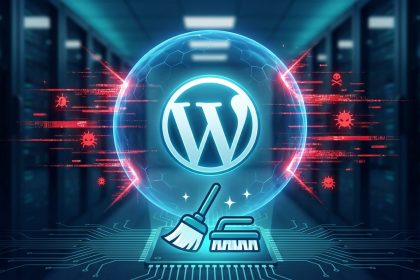
Here AI really helps: paste the content of a suspicious file and ask it to explain what it does. It's especially good at detecting obfuscated code—those very long lines full of base64_decode y eval that have no legitimate reason to be in a theme. If you already have indications that the website is compromised, our guide to cleaning a WordPress under attack covers the complete disinfection process, which is a different job from this audit.
Step 5: Audit the configuration
This is where AI performs best, because it involves reading configurations and detecting deviations.
Check these points:
- Editing files from the dashboard. If an attacker gains access with an administrator account, the theme editor provides direct code execution. It is disabled with
define('DISALLOW_FILE_EDIT', true);inwp-config.php. - Debugging in production.
WP_DEBUGmust be set tofalseon a production website. If it's active, error messages can reveal server paths. - File Permissions. The usual is 644 for files and 755 for folders. Nothing should be 777.
- XML-RPC. If you don't use the WordPress mobile app or Jetpack, you probably don't need it, and it's a common target for brute-force attacks.
- Directory Listing. Go to
tudominio.com/wp-content/uploads/. If you see a list of folders instead of an error, you have directory listing active and it should be deactivated. - PHP Version. An unsupported version does not receive security patches. We have a guide on how to update PHP in WordPress without getting scared.
A prompt that works well for this phase, pasting your wp-config.php with database credentials and security keys deleted:
"You are a WordPress security auditor. I'm providing you with a wp-config.php with sensitive data already removed. Review the configuration and tell me: what recommended security constants are missing, what settings are inappropriate for a production environment, and what you find that is not standard for a normal installation. Order the findings by risk, from highest to lowest, and for each one explain the specific consequence if exploited. Do not invent: if something cannot be determined with what I have given you, say so."
That last sentence matters. Explicitly asking it to acknowledge what it doesn't know greatly reduces fabricated answers.
Step 6: review security headers
HTTP headers are instructions your server sends to the visitor's browser. When set correctly, they close off entire families of attacks.
Check yours in a free analyzer like securityheaders.com: you enter your domain and it gives you a score with what's missing. The most important ones are Strict-Transport-Security, which forces HTTPS to be used always; X-Content-Type-Options, which prevents the browser from guessing file types; and Content-Security-Policy, the most powerful and also the easiest to misconfigure.
On this last one, a practical tip: a poorly written CSP breaks the website, and it usually breaks exactly what makes money (the form, the payment gateway, the chat). If you implement it, do it first in report-only mode for a few days to see what it would block before truly applying it.
Step 7: turn findings into a plan
An audit that ends in a list of twenty loose items is useless, because no one knows where to start. This is where AI closes the loop.
Pass all your findings to it and ask it to organize them like this:
"I'm passing you the findings of a WordPress security audit. Organize them into a table with these columns: finding, risk (high/medium/low), effort to fix (minutes/hours/days), and recommended execution order. Prioritize by risk divided by effort, so that the first items are those that provide the most protection with the least work. Add a final column indicating whether the change could break the website and needs to be done in a test environment."
That last column is what saves you the trouble. There are corrections you apply on the fly without fear, and others—touching permissions, changing the PHP version, implementing a CSP—that are tested first in a staging environment.
The limits: when this is not enough
All of the above is a configuration and attack surface audit. It covers the vast majority of real cases, because the vast majority of compromised WordPress sites are due to an outdated plugin or a weak password, not a sophisticated attack.
There are situations where this falls short and it's advisable for a person to look at it:
- There are already signs of compromise: strange redirects, spam in Google results, browser warnings. That's no longer an audit, it's an incident response, and the order of tasks is completely different.
- The website handles payments or sensitive personal data. That's where legal obligations come in that no automatic tool will evaluate for you.
- There is custom development. A custom plugin or a handmade theme have their own code, and that code has never been reviewed by anyone. A configuration audit doesn't cover it.
- It's a business-critical website. If a day of downtime costs you more than a professional review, the math speaks for itself.
Frequently Asked Questions
How often should I audit my WordPress?
A complete review like the one in this guide, twice a year. The vulnerability check in step 2, every month: it's the one that expires fastest, because new vulnerabilities are published every week. And always after a major change, such as adding an important plugin or changing themes.
Can I pass my entire wp-config.php to an AI?
Not without cleaning it first. That file contains your database username and password and session security keys. Delete those values, replace them with generic text, and then you can request the review. The same applies to any log file that may contain IP addresses or user data.
Does a security plugin replace an audit?
No, they do different things. The plugin is continuous surveillance: it blocks access attempts, filters traffic, and warns of changes. The audit is a one-time review of whether your configuration is correct and your software is up to date. A perfectly configured security plugin doesn't protect you from a plugin with a known vulnerability that you haven't updated in two years. If you want to get the most out of yours, we have a guide on little-known Wordfence settings.
What do I do if I find something serious?
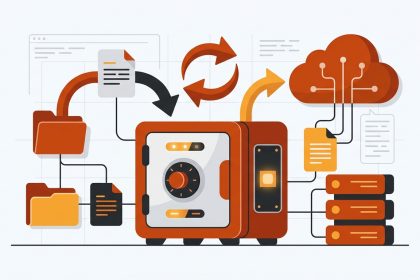
Before touching anything, a complete backup: files and database. Then apply the correction in a test environment if the change is delicate, and in production if it's trivial (updating a plugin, deleting an account). If what you've found is a malicious file, don't just delete it: they almost never come alone, and you need to find out how it got in or it will reappear.
To finish
Artificial intelligence doesn't do the audit for you, but it does turn a specialist's task into something you can do methodically. It narrows down where to look, translates technical jargon, and organizes the result into an executable plan.
What it doesn't delegate is judgment: what risk you assume, what you check against the official source, and what changes you test before applying. That part is still yours, and it's precisely what makes the difference between a real audit and a list of generic recommendations.
If you want to continue here, in our free tools library you have utilities that work entirely in your browser, without uploading anything to any server.