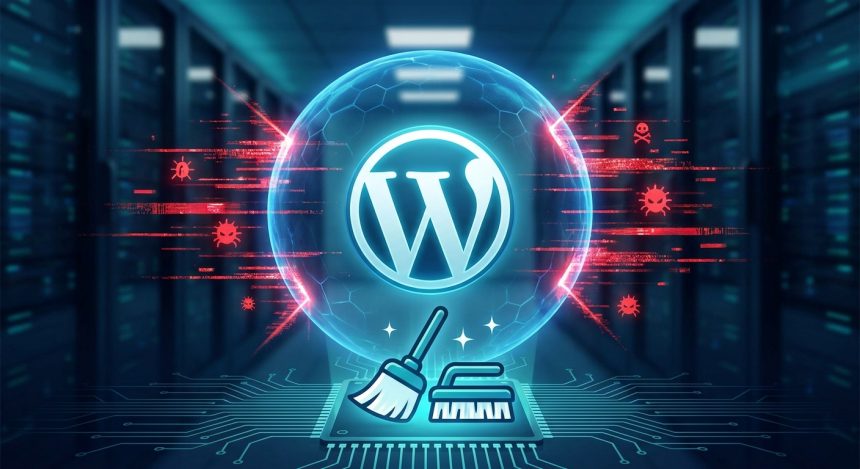
Imagine this! You wake up, have your coffee, and upon checking your website, you discover something is wrong. Strange pages, errors, slowness... Your WordPress could be under attack! We know this situation can be terrifying, especially if you're new to the world of websites. But don't panic. At Biblioweb, we are here to guide you. This quick guide will teach you, step by step, how to detect intruders and clean your website before the damage is irreversible. Protecting your digital asset is crucial to maintaining the trust of your visitors and the integrity of your project.
How to tell if your WordPress is in trouble? Clear Warning Signs
Detecting an attack in time is your first line of defense. Many attacks are subtle at first, but leave traces. Pay attention to these signs:
- Unexpected Content: De repente, aparecen posts, páginas o enlaces que no creaste ni autorizaste. Pueden ser spam o contenido malicioso.
- Strange Redirects: Your visitors are redirected to unknown, spam, or phishing sites without your consent. This is a clear indication of compromise.
- Slow Performance: Your website crawls, takes forever to load, even after you've optimized it. Malicious scripts consume server resources.
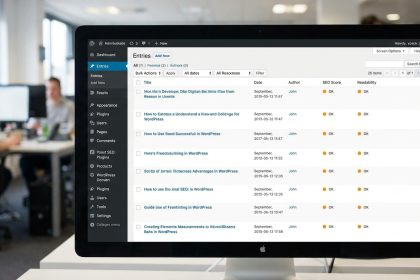
- Login Issues: Your credentials don't work, or you discover a new administrator user you didn't create. This indicates unauthorized access to your control panel of WordPress.
- Modified or New Files: When checking your server via FTP or cPanel, you find unknown files or strange modification dates on key files.
- Security Alerts: You receive notices from your hosting provider, Google Search Console, or security tools about malware or compromised reputation.
- Google Block: Your site appears with a security warning in search results, alerting users about dangerous content.
Do not underestimate any of these signs. Acting fast is key to minimizing damage. An attack can compromise not only your reputation and user trust, but also the safety of your visitors and the integrity of your data. Inaction can lead to traffic loss, Google penalties, and, in the worst case, the deletion of your site.
First Aid: What to do immediately if your WordPress has been compromised
If you have identified any of the above signs, it's time to act calmly, but decisively. These are the critical initial steps:
- Make a Complete Backup: Before attempting any cleanup, make a COMPLETE backup of all your files and your database. This is your safety net in case something goes wrong during the cleanup process. You can use your hosting panel or a backup plugin.
- Put Your Site in Maintenance Mode: Activate maintenance mode to prevent visitors from seeing the compromised site or the attack from spreading. This also prevents search engines from indexing malicious content.
- Change All Passwords: Change ALL passwords related to your site: administrator of WordPress, database (phpMyAdmin), FTP accounts, hosting control panel (cPanel/Plesk), and any other relevant user. Use strong and unique passwords.
- Notify Your Hosting Provider: Contact your hosting support. They may have tools to scan your site, access server logs to help you identify the origin of the attack, and, in some cases, offer assistance with cleanup.
Cleaning Your WordPress: Detailed Steps to Remove the Threat
Once you have taken the initial steps, it's time to eradicate the malware. This process requires patience and attention to detail:
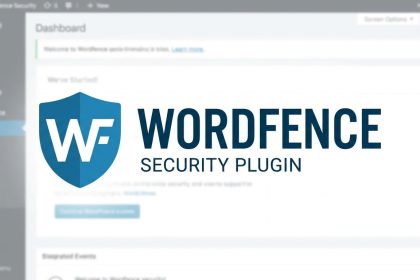
- Scan Your Site with Reliable Tools: Instala y ejecuta plugins de seguridad reconocidos como Wordfence Security, Sucuri Security o iThemes Security. Estas herramientas pueden escanear tu instalación de WordPress for malicious files, vulnerabilities, and unauthorized changes.
- Check WordPress Core Files: Compare the files of your WordPress installation (those that come by default in a clean download) with those of your site. Look for differences or strange files in directories like
wp-admin,wp-includesand the site root. Delete any file that doesn't belong. - Examine the Database: Access your database (usually via phpMyAdmin). Look for malicious code injections in common tables like
wp_posts(post content),wp_options(settings), orwp_users(new users). Pay special attention to long text fields. - Elimina Plugins y Temas Sospechosos o Inactivos: Deactivate and delete any plugin or theme you don't use, don't recognize, or that seems suspicious. Many attacks exploit vulnerabilities in outdated or abandoned software.
- Update Everything: Make sure your installation of WordPress, tus temas y todos tus plugins estén en sus últimas versiones. Las actualizaciones a menudo incluyen parches de seguridad cruciales que cierran las puertas a futuros ataques.
- Check File and Folder Permissions: Make sure your file and directory permissions are those recommended for WordPress (normally 644 for files and 755 for directories). Incorrect permissions can allow attackers to write or modify files.
Para prevenir futuros ataques, te recomendamos leer nuestra guía sobre consejos de seguridad esenciales para WordPress. Mantenerse informado es tu mejor defensa.
Prevention is the Best Defense for your WordPress
Once your site is clean, prevention becomes your number one priority. You won't want to go through this again. Implement these practices:
- Strong and Unique Passwords: Always use complex passwords, including uppercase letters, lowercase letters, numbers, and symbols. Change passwords regularly.
- Constant Updates Keep your WordPress, all your themes and plugins always updated. Updates not only bring new features but also vital security patches.
- Active Security Plugins: Keep a security plugin active and configured to monitor, scan, and protect your site in real-time.
- Regular and Automated Backup: Set up daily or weekly automatic backups and ensure they are stored in a secure external location.
- Eliminate the Unnecessary: Uninstall and delete any themes or plugins you don't use. Less software means fewer potential entry points for attackers.
- Two-Factor Authentication (2FA) Enable 2FA for your WordPress admin panel and your hosting account for an extra layer of security.
- Change the Default Access URL: Consider changing the access URL to
wp-adminto hinder brute-force attacks.
Descubre cómo mantener tu sitio siempre optimizado y seguro con nuestros tutoriales avanzados para WordPress. El conocimiento es poder.
Conclusión: Recupera el Control y Protege tu Activo Digital
Facing an attack on your WordPress can be stressful and overwhelming, but with the right information and quick, methodical action, you can regain full control of your site. Remember, web security is not a one-time event, but a continuous process of vigilance and adaptation. Stay informed, be proactive, and your site will be much safer and more resilient against future threats. At Biblioweb, we are always ready to help you navigate the fascinating and, at times, challenging digital world. Your website deserves to be protected!
Frequently Asked Questions
How long does it take to clean an attacked WordPress?
The time varies significantly depending on the complexity and type of attack. A thorough manual cleaning can take anywhere from a few hours to several days of work. Automated tools can speed up the initial detection and removal process, but a subsequent manual verification is always recommended. The crucial thing is to start the process without delay to avoid further damage.
Do I need an expert to clean my WordPress or can I do it myself?
For simple attacks or if you feel comfortable following detailed guides like this one, you can try cleaning it yourself. However, if the attack is very complex, if you lack technical experience, or if you don't feel confident with the steps, it is highly recommended to hire a WordPress security professional. Investing in an expert can save you time, stress, and potential errors that could worsen the problem.
How can I prevent future attacks on my WordPress after cleaning?
Prevention is key. Once clean, implement robust security measures: keep your WordPress, themes, and plugins always updated, use strong and unique passwords for all accesses, activate two-factor authentication, perform automatic and regular backups, and use a reliable security plugin for constant monitoring. Vigilance and proactive maintenance are your best allies.