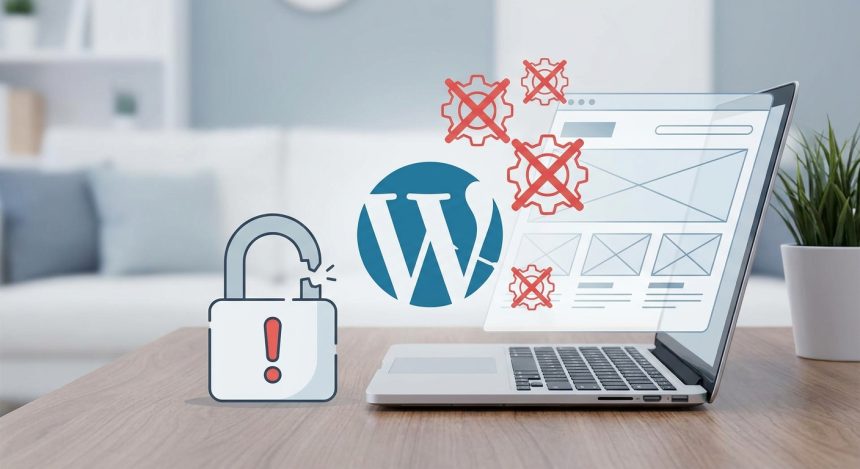
The installation of WordPress is the exciting first step to create your online presence. However, a small oversight can turn that excitement into frustration, leaving your website inaccessible or vulnerable. With this guide, you will learn to install WordPress flawlessly, avoiding the most common errors.
Before starting
To ensure a smooth and trouble-free installation, make sure you have the following items at hand:
- Registered domain: Your web address (e.g. biblioweb.com).
- Web Hosting Service: A space on a server where your website files will reside.
- Access to your hosting control panel (cPanel, Plesk, etc.): You will need create databases and manage files.
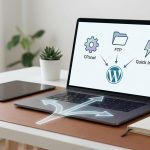
- FTP client (optional, but recommended if you don't use the hosting's file manager): Programs like FileZilla to upload files to your server.
- A plain text editor: Software like Notepad++, Sublime Text, or VS Code for editing configuration files.
- Stable internet connection.
Basic knowledge of navigating the
Complete the manual installation of WordPress, following all the steps detailed and avoiding common errors, it will take you approximately This tutorial has a moderate difficulty level and is estimated to take you 30 and 60 minutes. The difficulty level is Beginner to Intermediate, as it requires attention to detail and the execution of several consecutive steps. Don't worry, we'll guide you through each one!
Step 1: Choose Suitable Hosting and Domain (Avoid Failure #1: Inappropriate Hosting)
The first mistake many make is underestimating the importance of good hosting. A slow, unstable, or under-resourced hosting service can ruin your experience with WordPress even before you start. Choosing inadequate hosting is the main cause of performance problems and security in the long term. Your provider must offer support for PHP (version 7.4 or higher recommended), MySQL (version 5.7 or higher) or MariaDB (version 10.3 or higher), and an Apache or Nginx module.
- Research and compare different hosting providers that are optimized for WordPress.
- Verify that the chosen plan offers the necessary resources (disk space, RAM, CPU) for your website's expected size and traffic.
- Make sure your domain is correctly pointed to your hosting's name servers (DNS).
Tip: Don't be swayed by price alone. Cheap hosting with a bad reputation can end up costing you a lot in problems and lost time. Look for reviews and ratings from other users.
How to verify it worked: Access your hosting control panel and check that your domain appears listed and active. You can try to access a simple test page if your hosting allows it, or simply verify the DNS configuration.
Step 2: Prepare Your Database (Avoid Failure #2: Incorrect or Non-Existent Credentials)
WordPress needs a database to store all your information site: posts, pages, comments, settings, and users. A common mistake is to use incorrect database credentials or try to install without having created it. Without a properly configured database, WordPress cannot function. This step is crucial for your website's operation.
- Access your hosting control panel (usually cPanel or Plesk).
- Busca la sección “Bases de datos” o “MySQL Databases”.
- Create a new database with a descriptive name (e.g. wp_biblioweb).
- Create a new database user and assign a strong password to it.
- Assign the user you just create to the database, granting it all privileges.
Note: Write down the database name, username, and password. You will need them in Step 4. They are the key to your information!
How to verify it worked: In your control panel, you should see the database listed with the assigned user and all privileges. Some tools de hosting ofrecen una opción para “comprobar privilegios” o similar.
Step 3: Download and Upload WordPress Correctly (Avoid Failure #3: Corrupt Files or Wrong Location)
This step is where rookie mistakes are often made, such as downloading an old version or uploading files to the wrong folder. Using corrupt files or uploading them to the wrong place will prevent WordPress starts or displays correctly. Make sure to get the latest version and place it in your domain's root directory so it is accessible from the web.
- Go to the official page of WordPress in Spanish (es.wordpress.org/download/) and download the latest .zip file version.
- Descomprime el archivo .zip en tu ordenador. Verás una carpeta llamada “wordpress” con todos los archivos.
- Access your hosting's file manager (from cPanel) or use your FTP client (FileZilla).
- Navigate to your domain's root directory (commonly
public_html,www, or your domain name). - Upload the content de la carpeta “wordpress” (no la carpeta en sí) directamente a este directorio raíz. Es decir, los archivos como
index.php,wp-admin,wp-content, etc., should be directly inpublic_html.
Tip: If you want WordPress is in a subdirectory (e.g., yourdomain.com/blog), upload the files to a folder inside
public_html(e.g.,public_html/blog). But for a main installation, the root directory is ideal.
How to verify it worked: Once the files are uploaded, try to access your domain in the browser (e.g., yourdomain.com). If you see the welcome screen of WordPress for the installation (which asks you to select the language), you're on the right track! If you see a 404 error or a blank page, check the location of your files.
Step 4: Configure the wp-config.php File (Avoid Failure #4: Incorrect Editing or Incomplete Data)
The file wp-config.php is the heart of your site's configuration WordPress. Contiene la información vital para conectar tu sitio a la base de datos. Un error aquí, como una credencial mal escrita o un dato incompleto, es el fallo más común que impide la conexión con la base de datos, resultando en el famoso “Error al establecer una conexión con la base de datos”. Este paso es delicado y requiere precisión.
- In the directory where you uploaded the files from WordPress, look for the file named
wp-config-sample.php. - Rename it to
wp-config.php. - Open this file
wp-config.phpwith your hosting's text editor or download it and open it with your plain text editor. - Find the following lines and replace the example values with your database data from Step 2:
define( 'DB_NAME', 'nombre_de_la_base_de_datos' ); define( 'DB_USER', 'nombre_de_usuario_de_la_base_de_datos' ); define( 'DB_PASSWORD', 'contraseña_de_la_base_de_datos' ); define( 'DB_HOST', 'localhost' ); // En la mayoría de los casos, 'localhost' es correcto. Consulta a tu hosting si no lo es. - También, busca la sección de “Claves Únicas de Autenticación y Salts” y visita https://api.wordpress.org/secret-key/1.1/salt/ to generate a set of unique keys. Copy and paste these keys into your file
wp-config.php, replacing the example lines. - Save the changes to the file
wp-config.phpand, if you downloaded it, upload it again to the server, overwriting the previous one.
Note: Authentication keys are crucial for the security of your site. Do not use them as examples; always generate new ones! An error in this configuration can leave your site vulnerable.
How to verify it worked: If, when accessing your domain in the browser (e.g., yourdomain.com) ves la pantalla de instalación de WordPress (donde te pide el título del sitio, nombre de usuario y contraseña de administrador), significa que WordPress ya puede conectarse a tu base de datos. Si ves el error “Error al establecer una conexión con la base de datos”, revisa minuciosamente las credenciales en wp-config.php.
Step 5: Run the WordPress Installer (Avoid Failure #5: Incorrect File Permissions)
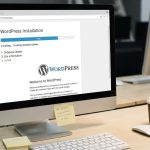
Once the files are in place and the database configuration is correct, it's time to run the WordPress web installer. A common failure at this point is incorrect file permissions, which prevent WordPress from writing necessary files or creating new folders. If permissions are not adequate, the installation may fail or your site may be vulnerable. This step guides you through the WordPress graphical interface to finalize the setup.
- Open your web browser and type your domain address (e.g., yourdomain.com).
- Verás la página de bienvenida de WordPress. Selecciona tu idioma y haz clic en “Continuar”.
- On the next screen, enter the following information:
- Site Title: The name of your website (e.g., Biblioweb).
- Username: Your username to access the WordPress administration panel. No uses “admin” for security.
- Password: A strong password for your administrator user. WordPress will suggest one.
- Your email: A valid email for recoveries and notifications.
- Search engine visibility: Marca la casilla “Disuade a los motores de búsqueda de indexar este sitio” only if your site is not ready to be public. You can uncheck it later.
- Haz clic en “Install WordPress”.
Note: File permissions should generally be 644 for files and 755 for directories. If the installation fails or you have problems uploading media afterwards, check the permissions of your files and folders on the hosting. This can be done from your cPanel file manager or via FTP.
Cómo verificar que ha funcionado: Si la instalación es exitosa, WordPress te mostrará un mensaje de confirmación y un botón para “Acceder”. Haz clic en él y serás dirigido a la página de inicio de sesión de tu nuevo sitio WordPress. ¡Felicidades, la parte más crítica ha terminado!
Step 6: Finalize the Installation and Access Your Panel
After running the installer, the WordPress installation process will be practically complete. Now you just need to access your new administration panel to start exploring and configuring your site. This is the gateway to all WordPress functionalities.
- Una vez que la instalación ha sido exitosa (Paso 5), verás un mensaje de “¡Listo!” y un botón para “Acceder”.
- Haz clic en “Acceder” o navega directamente a
tudominio.com/wp-admin. - Enter the username and password you created in Step 5.
- Haz clic en “Acceder”.
Tip: Save your admin panel URL (
tudominio.com/wp-admin) and your credentials in a secure password manager. You will need it often.
How to verify it worked: If you log in successfully, you will see the WordPress administration dashboard. Welcome to your new website! From here you can start configuring themes, plugins and add content.
Step 7: First Steps Post-Installation and Verification
The basic installation is already done, but there are a few things you should do immediately afterwards to ensure the health and security of your site. Don't forget these initial steps. A correct basic configuration is fundamental for the future of your website.
- Update WordPress, Themes and Plugins: Always keep everything updated to the latest version for security and performance.
- Delete default content: Borra la publicación “¡Hola world!” y la página “Página de ejemplo”.
- Configure Permalinks: Ve a “Ajustes > Enlaces permanentes” y elige “Nombre de la entrada” para una estructura de URL amigable para SEO.
- Install a theme: Elige un tema que se adapte a tu marca y necesidades. Ve a “Apariencia > Temas”.
- Install plugins essential: Consider plugins for SEO (Yoast SEO or Rank Math), security (Wordfence or Sucuri), backups, and contact forms.
- Configure search engine visibility: Si marcaste la casilla en el Paso 5, ve a “Ajustes > Reading” y desmárcala para que Google can index your site.
Tip: Once your site is up and running, it's vital to consider security. Install a security plugin and set up automatic backups. Prevention is key.
How to verify that it worked: Browse your website as a normal visitor (e.g., yourdomain.com). Check that everything looks correct, that pages load well, and that there are no visible errors. Access your administration panel again to ensure you can work without problems.
Common problems and solutions
Even following this guide, small inconveniences may arise. Here are some of the most frequent problems when install WordPress and how to solve them:
- Síntoma: “Error al establecer una conexión con la base de datos”
- Solution: Check the file
wp-config.php. Make sure the database name, username, password, and database host are exactly what you created. A single misspelled character can cause this error. Confirm that the user has all privileges on the database.
- Solution: Check the file
- Symptom: Blank screen or 500 error when accessing your website.
- Solution: This often indicates a PHP error or file permission issues. Check your server's error logs (accessible from cPanel). Verify that your file permissions are 644 and folder permissions are 755. Also, make sure your PHP version is compatible with the WordPress version you installed.
- Síntoma: “No se pudo escribir el archivo en el disco” al subir imágenes o instalar plugins.
- Solution: This is a permissions issue. Make sure the folder
wp-content/uploadshas 755 permissions (or even 777 temporarily for testing, although not recommended for production) and that the file owner is your web server user.
- Solution: This is a permissions issue. Make sure the folder
- Symptom: Broken homepage after changing permalinks.
- Solution: This is usually a problem with the file
.htaccess. Access your server via FTP or file manager, find the file.htaccessen el directorio raíz de WordPress y bórralo (o renómbralo). Luego, vuelve a “Ajustes > Enlaces permanentes” en tu panel de WordPress y guarda los cambios para que WordPress genere un nuevo.htaccess.
- Solution: This is usually a problem with the file
- Síntoma: “Se ha producido un error crítico en esta web”
- Solution: This generic error usually appears with WordPress 5.2+. Check your email (the one you used for the installation), as WordPress usually sends a recovery link with more details about the error and the plugin/theme that caused it. If not, check your hosting's error logs.
Frequently Asked Questions
Is it better to install WordPress manually or use an automatic installer (like Softaculous)?
While automatic installers are faster and simpler for beginners, manual installation gives you full control over each step and helps you better understand your site's structure. To avoid critical errors and learn thoroughly, manual is preferable. Plus, if something goes wrong, you'll know where to look.
What PHP version should I use for my WordPress installation?
It is always recommended to use the latest and most stable version of PHP that is compatible with WordPress. Currently, WordPress recommends PHP 7.4 or higher, with PHP 8.x being ideal for optimal performance and greater security. You can change the PHP version from your hosting's control panel.
Can I change my WordPress site's domain after installing it?
Yes, it is possible to change the domain, but it is not as simple a process as modifying a URL. It requires updating the WordPress database and, sometimes, some configuration files. If you need to do it, look for a specific guide on how to migrate or change the WordPress domain to avoid broken links and SEO problems.
What do I do if my WordPress site doesn't load or appears blank after installation?
This is a common problem. First, verify server requirements (PHP, MySQL) and file permissions. Then, check the wp-config.php to ensure that the database credentials are correct. Finally, check your hosting's error logs for more specific clues about the cause of the problem.
Conclusion and next steps
Congratulations! You have successfully completed the WordPress installation and, more importantly, you have learned how to avoid beginner mistakes that can ruin your web project. Installing WordPress is just the beginning of your exciting journey in the world digital world. With your site ready, you can now focus on what really matters: create amazing content, interact with your audience, and grow your online presence.
Ready to take the next step? We invite you to explore our advanced guides on how to optimize WordPress for SEO or discover essential WordPress plugins that will make your life easier and your website more powerful. The Biblioweb team is here to accompany you at every stage of your digital adventure!
Frequently Asked Questions
What is WordPress?
Learn WordPress step by step with a clear, practical, and ready-to-apply guide.
Why is WordPress important?
It helps you get better results and make informed decisions about ⚠️ Beginner's Mistake! The 5 WordPress Installation Failures That Destroy Your Website (and how to avoid them).
How to get started with WordPress?
Follow the steps described in this article and apply the recommendations according to your case.