Do you feel a chill when you think about your website's security? You're not alone. Many users of WordPressespecially those who are just starting out, underestimate the importance of securing their site. But the reality is that your online project can be vulnerable to attacks if you ignore certain basic loopholes. At Biblioweb, we understand your concern and want to help you protect your investment. Today, we reveal the 3 most common security flaws that beginners often overlook in their WordPress and, most importantly, we'll show you how to close them immediately. Get ready to strengthen your website!
Weak passwords and default users: The easiest gateway to your WordPress
Imagine leaving your front door open with a note that says "come in." It sounds absurd, right? Well, that's what happens when you use passwords like "123456" or "password," or keep the default "admin" username. They are open invitations to cybercriminals. Most attacks on websites WordPress They start here.
Bots and hackers use automated programs to test millions of username and password combinations every day. If yours is predictable, it's only a matter of time before they find it. A compromised site can mean data loss, malware injection, or even complete control of your website.
How to shield this gap?
- Strong Passwords Create long passwords (more than 12 characters) that combine uppercase letters, lowercase letters, numbers, and symbols. Use a password manager if you need one.
- Change the User "admin": Never use "admin" as a username. Create a new user with administrator privileges and then delete the original "admin". It's a simple, but crucial step.
- Two-Factor Authentication (2FA) Add an extra layer of security. With 2FA, in addition to your password, you'll need a code from your mobile to log in. There is plugins excellent ones that make this easy for you.
Remember: the security of your access is the first line of defense for your WordPress. Don't take it lightly.
Plugins Outdated Themes: A Minefield for Your WordPress
Your site WordPress it is not a static entity. Developers constantly release updates for the WordPress core, as well as for plugins and themes you use. These updates not only add new functionalities but, and this is vital, fix security vulnerabilities that have been discovered. Ignoring them is like walking through a minefield blindfolded.
An outdated plugin or theme is a potential security hole. Hackers are always looking for these known weaknesses to exploit them. Once they find a vulnerability in an old version of software, they can use it to access thousands of sites that haven't been updated.
Steps to keep your WordPress up to date:
- Constant Updates Configure your WordPress dashboard to notify you of updates and perform them as soon as they are available. Before updating, always back up.
- Reliable Sources Download plugins and themes only from official sources (WordPress.org repository, reputable premium developers). Avoid "nulled" or pirated ones; they often contain malicious code.
- Regular Audit Periodically review the plugins and themes you have installed. If you don't use them, deactivate and delete them! Less software means fewer potential entry points. Discover how to choose secure plugins for your WordPress.
Maintain your ecosystem of WordPress Updated is one of the most effective and simple security practices you can implement.
Lack of Backups and Reactive Security: When your WordPress is already in trouble
No matter how well you do it, no system is 100% invulnerable. A human error, a server failure, or a sophisticated attack can occur. This is where backups come into play. Not having a backup strategy is like building a house without fire insurance.
Many beginners only think about security once their site has been hacked or has gone down. At that point, if you don't have a recent and functional backup, recovery can be a nightmare, costly, and in the worst-case scenario, impossible. Losing all your content, your SEO, and your brand's reputation is a risk no one should take.
Your WordPress backup strategy:
- Automate Your Backups Use backup plugins or your hosting's services to schedule automatic and regular backups of your entire site (files and database).
- External Storage Store your backups in a different location than your web server (Google Drive, Dropbox, Amazon S3). This way, if the server fails, your copies are safe.
- Test Your Backups It's not enough to make them; ensure you can restore them. Perform periodic tests in a staging environment to verify that the copies are functional. Optimize your WordPress performance while securing it.
A good backup plan is your ultimate safety net. It allows you to breathe easy knowing that, no matter what happens, you can recover your WordPress and get back online quickly.
Conclusion: Empower yourself and fortify your WordPress
Your site's security WordPress It's not a luxury, it's a necessity. Ignoring these three common gaps can have devastating consequences for your online project. But don't worry, you have the power to change it! By implementing strong passwords, keeping your software updated, and performing regular backups, you'll be taking giant leaps to protect your website.
At Biblioweb, we want your WordPress experience to be secure and successful. Don't let your website be a "sieve." Take control today and fortify your platform!
Frequently Asked Questions
How often should I back up my WordPress site?
It depends on how often you update your content. For active blogs or online stores, at least a daily backup is recommended. For sites with weekly updates, a weekly backup may be sufficient. Always have a backup before making any major changes.
Is it necessary to use a security plugin in WordPress?
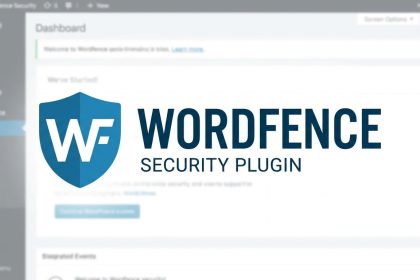
Although basic good practices are fundamental, a security plugin (like Wordfence or iThemes Security) adds an extra layer of protection. They offer features such as a firewall, malware scanning, brute-force attack protection, and activity monitoring, complementing your manual efforts.
What do I do if my WordPress site has already been hacked?
First, don't panic. Disconnect the site if possible to prevent further damage. Then, restore a clean backup (from before the hack). If you don't have one, contact a WordPress security expert or your hosting provider. Change all your passwords and clean up any suspicious files before putting it back online.