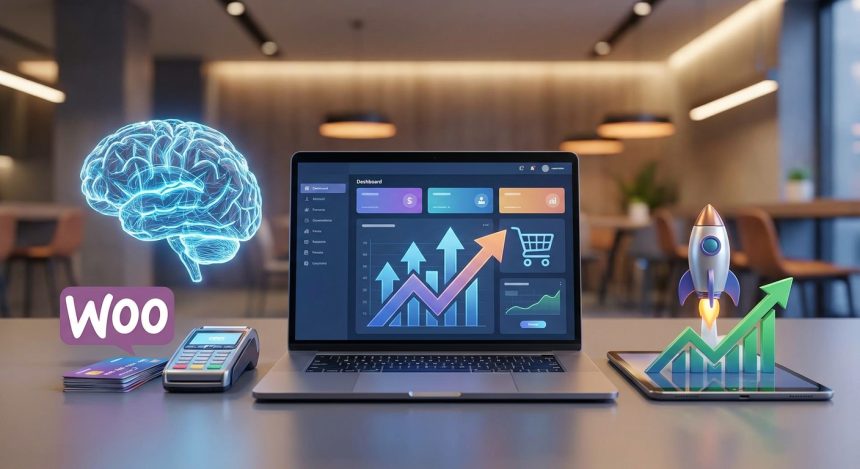
You will learn to select, install and configure the most efficient payment gateways for your store **WooCommerce**, integrating AI strategies to maximize your conversions and ensure a constant revenue stream. Optimize your checkout and offer the best experience to your customers.
Before starting
Before you start
- To successfully follow this tutorial and configure your payment gateways in **Woocommerce**, you will need to have the following items at hand: WordPress A **Woocommerce** installation
- active and functional.
- The **Woocommerce** plugin already installed and configured with your products. WordPress.
- Administrator access to your site An active SSL certificate on your security security
- of payments).
- A bank or business account linked to the payment gateway you choose (e.g., Stripe, PayPal, Mercado Pago).
- API credentials (public and secret keys) for the selected payment gateway. WordPress.
Basic knowledge of navigating the
Estimated time and difficulty level This tutorial has a moderate difficulty level and is estimated to take you between WordPress 1 and 2 hours to complete, depending on your familiarity with
and the number of payment gateways you wish to configure. Take your time with each step to ensure correct configuration.
Step 1: Understanding Payment Gateways and their Impact on **Woocommerce** site Payment gateways are the technological bridge that allows your **Woocommerce** store to securely process financial transactions. They act as intermediaries between your tools of intelligence of canartificial optimize , furthermore,
- this process, personalizing offers or detecting fraud. This first step is crucial to understanding the importance of each choice you will make. Research available options:
- Familiarize yourself with popular gateways like Stripe, PayPal, Mercado Pago, or others specific to your region. Consider the fees: Each gateway has a different transaction fee structure. Compare and choose business.
- the one that best suits your business model. security: Evaluate the
- Make sure the gateway complies with PCI DSS security standards. Think about the user experience:
Does the gateway offer a smooth payment process without annoying redirects? Tip: Your choice of payment gateway should be based on your target audience and their geographical location. Offering can increase local options
significantly confidence and conversions. How to verify it worked: You will have understood the relevance of payment gateways and will have a list
of 2-3 potential options that fit your needs and those of your audience.
Step 2: Choosing the Ideal Payment Gateway for your **Woocommerce** Store Choosing the payment gateway is one of the most important decisions for your online store. Not all
- all gateways are the same, and what works for one business may not be ideal for another. You should consider factors such as your audience's preferences, transaction fees, availability in your region, and ease of integration with **Woocommerce**. Some gateways are ideal for international transactions, while others specialize in local markets. Analyzing these points will help you make an informed decision that boosts your sales and minimizes operational costs. A good choice translates into fewer abandoned carts and more satisfied customers. Identify your audience:
- What payment methods do they prefer? Are they credit card users or e-wallets? Analyze your sales volume: Some gateways offer better rates for high volumes.
- Compare features: Look for functionalities such as recurring payments, multi-currency support, or fraud detection.
- Verify integration with **Woocommerce**: Make sure there is an official or well-supported plugin for the chosen gateway.
Warning: Avoid choosing a gateway based solely on the lowest fees. Security and reliability are paramount for your customers' trust.
How to verify it worked: You will have selected one or two main payment gateways that are most suitable for your business and target audience.
Step 3: Installing and Activating the Gateway Plugin in **Woocommerce**
Once you have chosen your payment gateway, the next step is to integrate its functionality into your **Woocommerce** store. This is usually achieved through a specific plugin that connects your site with the gateway service. The wholesalemost popular gateways have plugins official or highly recommended ones available in the WordPress or on their own websites. Installation is a standard process of WordPress, but initial activation and configuration are crucial to ensure everything works correctly. This step is the technical start of implementing your payments, so pay close attention to the details.
- Access your dashboard WordPress: Ve a “Plugins” > “Añadir nuevo”.
- Search for the gateway plugin: Utiliza el buscador para encontrar el plugin de tu pasarela (ej. “Stripe para **Woocommerce**” o “PayPal para **Woocommerce**”).
- Install the plugin: Haz clic en “Install ahora” y luego en “Activar”.
- Verify the appearance in **Woocommerce**: Una vez activado, deberías ver la opción de la pasarela en “Woocommerce” > “Ajustes” > “Pagos”.
Does the gateway offer a smooth payment process without annoying redirects? Always download plugins from official sources or trusted developers to avoid security and compatibility issues.
How to verify it worked: Your payment gateway plugin bewill be installed and activated, and will appear as an option in the **Woocommerce** payments section. Once you have it ready, continue…
Step 4: Basic Payment Gateway Configuration in **Woocommerce**
With the plugin activated, it's time to configure it so your **Woocommerce** store can start processing payments. This process involves entering your gateway account credentials, such as the API Keys you obtained when registering for the gateway service (e.g., Stripe or PayPal). These keys are unique to your account and are essential for your website to communicate securely with the gateway. Basic configuration also includes enabling the gateway as a payment method and, in some cases, defining the environment (test or production mode). It is vital to ensure that all keys are entered correctly to avoid transaction errors.
- Navigate to payment settings: In your dashboard WordPress, ve a “Woocommerce” > “Ajustes” > “Pagos”.
- Enable the gateway: Find the gateway you just install y activa el interruptor para “Habilitar”.
- Haz clic en “Gestionar” o “Configurar”: This will take you to the gateway's specific configuration page.
- Enter your API keys: Copia y pega tus “Clave publicable” (Publishable Key) y “Clave secreta” (Secret Key) desde tu cuenta de la pasarela.
- Save the changes: Asegúrate de hacer clic en “Guardar cambios” para aplicar la configuración.
Warning: Never share your secret API keys. Treat them as the most confidential information of your store.
How to verify it worked: The payment gateway will be enabled in **Woocommerce** and the API keys will be saved.
Step 5: Advanced Settings and Customizing the Payment Experience
Beyond basic configuration, many gateways offer advanced settings that can significantly improve the user experience and security of your **Woocommerce** store. These settings may include customizing the title and description of the payment method seen by the customer, configuring webhooks for real-time notifications, or activating anti-fraud functionalities. You can also define whether you want to enable test mode to perform fictitious transactions before going live. Customizing these details helps build a strong brand and offer an intuitive and reliable checkout process. A polished user experience reduces the cart abandonment rate.
- Customize the title and description: En la configuración de la pasarela, edita el “Título” y la “Descripción” para que sean claros y atractivos para tus clientes.
- Configure test/production mode: Activa el “Modo de prueba” (Test Mode) para realizar transacciones ficticias sin afectar tu dinero real. Desactívalo cuando estés listo para lanzar.
- Adjust webhook settings (if applicable): Copy the webhook URL provided by the plugin and paste it into the webhook settings of your payment gateway account.
- Explore anti-fraud options: Analyze your sales volume: tools integrated to detect and prevent fraudulent transactions. Activate them if available.
- Save all changes: It is essential to save each setting for it to apply correctly.
Does the gateway offer a smooth payment process without annoying redirects? Use test mode thoroughly before going live. This will allow you to detect any errors without affecting your real customers.
How to verify it worked: Advanced settings will be configured according to your preferences, and the gateway will be How to verify it worked: You will have understood the relevance of payment gateways and will have a for testing.
Step 6: Integration with Tools AI for Payment Optimization
Here's where where your **Woocommerce** store can truly differentiate itself. The intelligence artificial offers enormous potential to optimize the payment process and increase your sales. You can integrate AI tools to personalize the checkout experience, such as offering preferred payment methods based on customer history, or use AI for advanced fraud detection that goes beyond basic capabilities. Some solutions AI solutions can also analyze user behavior during payment to identify friction points and suggest improvements. Implementing these technologies not only improves security but also creates a smoother and more personalized shopping experience, leading to higher conversions and a reduction reduction of abandoned carts.
- Research plugins AI for **Woocommerce**: Look for plugins that offer checkout personalization, AI-powered fraud prevention, or predictive analytics.
- Consider external AI services: Platforms like Riskified or Kount specialize in AI-powered fraud prevention and can be integrated with **Woocommerce**.
- Configure integrations: Follow the specific instructions for each plugin or service to connect your store with the AI tool.
- Monitor results: Pay attention to how AI impacts your conversion rates and fraud detection.
Does the gateway offer a smooth payment process without annoying redirects? Start with an AI integration that solves a specific problem, such as fraud prevention, before expanding to other functionalities.
How to verify it worked: You will have identified and configured at least one AI tool that integrates with your payment process in **Woocommerce**, or you will have a clear plan to do so.
Step 7: Performing Exhaustive Payment Gateway Tests
After configuring your payment gateways and any AI integration, the most critical step before launching is to perform exhaustive tests. You should simulate the purchase process as if you were a real customer, using the test mode of each gateway. This involves adding products to the cart, going to checkout, and completing transactions with different payment methods. It is essential to verify that the payment is processed correctly, that the order status is updated in **Woocommerce**, and that both you and the customer receive the appropriate notifications. A meticulous testing process ensures that your customers will not experience problems when trying to buy, which is vital for your store's reputation.
- Activate test mode: Asegúrate de que todas las pasarelas estén en “Modo de prueba” o “Sandbox”.
- Simulate complete purchases: Add several products to the cart, use different shipping and billing addresses.
- Test each payment method: Perform a test transaction with each gateway you have configured.
- Verify order status: En “Woocommerce” > “Pedidos”, comprueba que el estado del pedido se actualiza correctamente (ej. “Procesando” o “Completado”).
- Check email notifications: Make sure you receive order notifications and that the customer would also receive them.
- Test error scenarios: Try making a purchase with a rejected test card to see how the gateway handles the error.
Warning: Do not launch your store with payment gateways without having performed complete tests. Checkout errors are one of the main causes of abandonment.
How to verify it worked: You will have completed at least one successful test purchase with each configured payment gateway, and the orders will appear correctly in your **Woocommerce** panel.
Step 8: Continuous Monitoring and Optimization of your Payments
Configuring your payment gateways doesn't end with launch. It's a continuous process of monitoring and optimization to ensure maximum performance for your **Woocommerce** store. You should regularly review your sales and transaction reports to identify patterns, bottlenecks, or potential fraud. Pay attention to transaction success rates and any errors that may arise. Customer feedback on the payment process is invaluable. Additionally, as new AI technologies or payment methods emerge, consider implementing them to keep your store competitive and offer the best possible experience.
- Review your **Woocommerce** reports: Consulta “Woocommerce” > “Informes” para analizar tus ventas y el rendimiento de las pasarelas.
- Monitor gateway logs: Some gateways offer transaction logs that can help you debug problems.
- Stay updated: Subscribe to news from your payment gateways and **Woocommerce** to learn about new features.
- Ask for customer feedback: Conduct surveys or ask for feedback on the payment experience.
- Consider optimization with A/B testing: Test different configurations or texts in your checkout to see what works best.
Does the gateway offer a smooth payment process without annoying redirects? Continuous optimization of your payment gateways is key to maintaining high conversion rates and sustained growth.
How to verify it worked: You will have an established routine to monitor the performance of your payment gateways and will be attentive to new opportunities for improvement.
Common problems and solutions
- Problem: Transactions fail without a clear error message in **Woocommerce**.
Solution: Review the payment gateway logs in your account (e.g., Stripe Dashboard) and in the **Woocommerce** logs (Woocommerce > Status > Logs). Verify that the API keys are correct and that the SSL certificate is active. - Problem: The payment method does not appear at checkout.
Solution: Asegúrate de que el plugin de la pasarela está activado y que la pasarela está habilitada en “Woocommerce” > “Ajustes” > “Pagos”. También verifica que no haya restricciones geográficas o de moneda configuradas. - Problem: Los clientes reciben un error de seguridad o “sitio no seguro” al intentar pagar.
Solution: Confirm that your SSL certificate is correctly installed and active across your entire website. Without SSL, no payment gateway will function securely. - Problem: Order notifications are not sent or arrive late.
Solution: Review the webhook settings in your gateway account and in **Woocommerce**. Make sure the webhook URL is correct and that there are no issues with your mail server. - Problem: High transaction fraud rates.
Solution: Activate all available anti-fraud tools in your gateway's settings. Consider integrating an AI plugin or service specialized in fraud detection for **Woocommerce**.
Frequently Asked Questions
Is an SSL certificate really necessary for payment gateways?
Yes, an SSL certificate is absolutely essential. It encrypts communication between the client's browser and your server, protecting sensitive data such as credit card numbers. Without SSL, payment gateways will not function correctly and your site will not be considered secure, which will affect your customers' trust and your SEO.
Can I have multiple payment gateways active in my **Woocommerce** store?
Of course! In fact, it's a practice recomendada ofrecer varias opciones de pago. Esto brinda flexibilidad a tus clientes y puede reducir las tasas de abandono del carrito, ya que cada cliente tiene sus preferencias. Puedes activar y configurar tantas pasarelas como desees en “Woocommerce” > “Ajustes” > “Pagos”.
How can I tell if a payment gateway is secure?
A secure payment gateway must comply with the PCI DSS (Payment Card Industry Data Security Standard). Look for this certification in the gateway's documentation. Additionally, choose recognized gateways with a good reputation in the market. Using an SSL certificate on your own site is also a fundamental layer of security.
How can AI help optimize my payment gateways?
AI can optimize your payment gateways in several ways: advanced fraud detection, personalization of the payment experience (showing preferred payment methods), predictive analytics to identify abandoned carts, and dynamic fee optimization. By integrating AI, your **Woocommerce** store can make smarter decisions to increase security and conversions.
What should I do if a payment gateway suddenly stops working?
First, check for any service interruption notices on the gateway's website. Then, review the error logs in your **Woocommerce** panel and on your server. Make sure the gateway plugin is updated and that there are no conflicts with other plugins o themes. If the problem persists, contact the gateway's technical support and your hosting provider's support.
Conclusion and next steps
You have successfully configured your payment gateways in **Woocommerce** and are now ready to process transactions securely and efficiently. Remember that optimizing your checkout process is a continuous journey. Monitor performance, listen to your customers, and don't hesitate to explore new technologies, especially intelligence artificial, to keep your store at the forefront.
**Ready to take your store to the next level?** Explore our blog to discover more tutorials on how to create a website with WordPress y advanced digital marketing strategies. If you need additional help with AI implementation on your website, don't hesitate to contact our team of experts for a personalized consultation. Your online success is our priority!