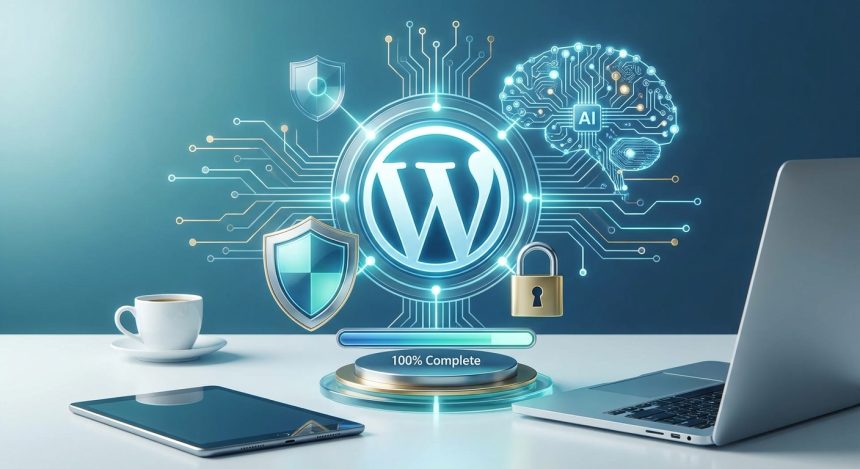
¡Felicidades! Has dado el primer paso crucial en tu aventura digital con la instalación de WordPress. Pero, ¿sabías que este es solo el principio? En esta guía exhaustiva, te acompañaremos paso a paso para transformar esa instalación básica en una fortaleza digital, optimizada no solo para la seguridad sino también para el futuro de la inteligencia artificial. Prepárate para blindar tu web y potenciarla como nunca antes.
Before starting
Para asegurar un proceso fluido y eficiente, es fundamental que tengas a mano algunos elementos y conocimientos básicos. Esto te ahorrará tiempo y evitará frustraciones innecesarias en cada etapa de la configuración post-instalación.
- Acceso a tu panel de administración de WordPress (wp-admin).
- Credenciales de tu proveedor de hosting (cPanel, Plesk o similar).
- Un editor de texto simple (como Notepad o Sublime Text) para notas rápidas.
- Stable internet connection.
- Disposición para aprender y experimentar con nuevas herramientas.
Basic knowledge of navigating the
Este tutorial está diseñado para ser completado en aproximadamente 2-4 horas, dependiendo de tu familiaridad con WordPress y la configuración de servidores. El nivel de dificultad es intermedio, pero con atención a los detalles, cualquier joven emprendedor o entusiasta tecnológico podrá seguirlo sin problemas.
Paso 1: Verificación de la instalación de WordPress y primeros ajustes esenciales
Una vez que la instalación de WordPress ha finalizado, el primer paso es asegurarnos de que todo esté en orden y realizar algunas configuraciones iniciales que son la base de la seguridad y el rendimiento. Esto incluye verificar la versión de PHP, la configuración de los permalinks y la eliminación de contenido predeterminado que no necesitas.
- Accede a tu panel de administración: Dirígete a
tudominio.com/wp-admine inicia sesión con tus credenciales. - Verifica la versión de PHP: En tu cPanel (o panel de hosting), busca la opción ‘Selector de PHP’ o ‘Configuración de PHP’. Asegúrate de que tu sitio esté usando una versión de PHP 7.4 o superior (idealmente 8.0+ para mejor rendimiento y seguridad).
- Configure Permalinks: Ve a ‘Ajustes’ > ‘Enlaces permanentes’. Selecciona ‘Nombre de la entrada’ (Post name). Esto hará que tus URLs sean amigables para SEO y fáciles de recordar. Guarda los cambios.
- Elimina contenido por defecto: Borra la entrada ‘¡Hola mundo!’, la página ‘Página de ejemplo’ y el comentario predeterminado. Ve a ‘Entradas’ y ‘Páginas’ para realizar estas eliminaciones.
Does the gateway offer a smooth payment process without annoying redirects? Una versión de PHP actualizada no solo mejora la seguridad, sino que también acelera significativamente tu sitio web. No subestimes su importancia.
Cómo verificar que ha funcionado: Navega por tu sitio web y comprueba que las URLs de tus páginas y entradas son limpias y descriptivas. Confirma que no hay contenido de ejemplo visible.
Paso 2: Fortaleciendo la seguridad de tu WordPress con plugins clave
La seguridad es un pilar fundamental en cualquier web, y más aún cuando hablamos de una plataforma tan popular como WordPress. Después de la instalación de WordPress, tu sitio es un lienzo en blanco, y es tu responsabilidad protegerlo. Aquí te mostraremos cómo hacerlo con herramientas probadas y efectivas.
La elección de plugins de seguridad adecuados es crítica para proteger tu sitio de ataques maliciosos, spam y vulnerabilidades. No esperes a que sea demasiado tarde; implementa estas medidas desde el principio. Un sitio seguro genera confianza en tus usuarios y protege tu información valiosa.
- Instala un plugin de seguridad robusto: Dirígete a ‘Plugins’ > ‘Añadir nuevo’. Busca y instala ‘Wordfence Security’ o ‘Sucuri Security’. Actívalo y sigue el asistente de configuración inicial para escanear tu sitio y aplicar las configuraciones recomendadas.
- Habilita la autenticación de dos factores (2FA): Muchos plugins de seguridad, o plugins específicos como ‘Two Factor Authentication’, te permiten añadir una capa extra de seguridad a tus inicios de sesión. Configúralo para tu usuario administrador.
- Cambia el prefijo de la base de datos (si no lo hiciste en la instalación): Si tu prefijo sigue siendo
wp_, considera cambiarlo. Algunos plugins de seguridad ofrecen esta función, o puedes hacerlo manualmente editando el archivowp-config.php(requiere conocimientos técnicos). - Configura copias de seguridad automáticas: Instala un plugin como ‘UpdraftPlus’ o ‘Duplicator’. Programa copias de seguridad diarias o semanales de tu base de datos y archivos, y asegúrate de que se almacenen en una ubicación externa (Google Drive, Dropbox, etc.).
Warning: Ignorar la seguridad es invitar a problemas. Un sitio comprometido puede dañar tu reputación, perder datos valiosos y afectar tu posicionamiento SEO.
Cómo verificar que ha funcionado: Recibirás notificaciones de seguridad del plugin elegido. Intenta iniciar sesión con 2FA si lo configuraste. Confirma que las copias de seguridad se están generando y almacenando correctamente.
Paso 3: Optimización SEO On-Page con Yoast para potenciar tu visibilidad
Ahora que tu sitio está seguro, es hora de hacerlo visible. La optimización SEO es vital para que tu contenido llegue a tu público objetivo. Utilizaremos Yoast SEO, una herramienta indispensable para cualquier webmaster de WordPress, para configurar los aspectos más importantes de tu estrategia on-page.
Una buena configuración SEO desde el inicio te ahorrará mucho trabajo a largo plazo. Ayudará a los motores de búsqueda a entender de qué trata tu sitio y a clasificar tu contenido de manera efectiva, atrayendo tráfico orgánico de calidad.
- Instala y activa Yoast SEO: Ve a ‘Plugins’ > ‘Añadir nuevo’, busca ‘Yoast SEO’, instálalo y actívalo.
- Ejecuta el asistente de configuración de Yoast: Una vez activado, verás una nueva opción ‘SEO’ en tu menú lateral. Haz clic en ‘General’ > ‘Asistente de configuración’ y sigue los pasos para configurar los aspectos básicos de tu sitio (tipo de sitio, organización o persona, visibilidad para motores de búsqueda, etc.).
- Configura los títulos y meta descripciones predeterminados: En ‘SEO’ > ‘Apariencia en el buscador’ > ‘Tipos de contenido’, define plantillas para los títulos y meta descripciones de tus entradas, páginas y tipos de contenido personalizados. Usa variables como
%%title%%,%%sitename%%. - Genera y envía tu sitemap a Google Search Console: Yoast SEO genera automáticamente un sitemap XML. Lo encontrarás en ‘SEO’ > ‘General’ > ‘Características’ > ‘Sitemaps XML’. Copia la URL del sitemap y envíala a Google Search Console para ayudar a Google a indexar tu contenido.
Does the gateway offer a smooth payment process without annoying redirects? La focus keyword “wordpress instalacion” es clave. Asegúrate de que, al crear contenido futuro, utilices las recomendaciones de Yoast para optimizar cada entrada y página individualmente.
Cómo verificar que ha funcionado: En Google Search Console, comprueba que tu sitemap ha sido enviado y procesado sin errores. Al crear una nueva entrada o página, verás el metabox de Yoast SEO debajo del editor, listo para ayudarte a optimizar.
Paso 4: Preparando tu WordPress para la era de la Inteligencia Artificial
El futuro de la web está intrínsecamente ligado a la inteligencia artificial. Desde la generación de contenido hasta la personalización de la experiencia del usuario, la IA ofrece un potencial inmenso. Después de tu instalación de WordPress, es el momento de sentar las bases para integrar estas tecnologías de manera inteligente y estratégica.
It's not just about adding a chatbot, but about optimizing your site to interact with AI tools, improve efficiency, and offer a superior user experience. Being prepared for AI means having a clear data structure and a robust technical foundation.
- Implement schema markup: Yoast SEO helps you with this. Go to 'SEO' > 'Search Appearance' > 'Content Types' and set the default schema type for your posts and pages. For specific content (recipes, products, events), use plugins like 'Schema Pro' or 'Rank Math' for more granular control.
- Optimize loading speed (Core Web Vitals): AI, especially in the realm of search engines, values user experience. Install cache plugins like 'WP Super Cache' or 'LiteSpeed Cache' and image optimization plugins like 'Smush' or 'ShortPixel'.
- Consider AI plugins for content or SEO: Explore plugins that use AI for text draft generation, title optimization, or content analysis. Examples include 'AI Content Writer & Generator' or integrations with tools like Jasper or Copy.ai.
- Prepare your content for AI rewriting or summarization: Write well-structured content, with clear headings and concise paragraphs. This makes it easier for AI tools to process and use it effectively, whether for summaries, translations, or adaptations.
Does the gateway offer a smooth payment process without annoying redirects? AI feeds on structured data. The more organized and semantically rich your content is, the better it will interact with future intelligent tools.
How to verify it worked: Use Google's 'Structured Data Testing Tool' to verify that your schema markup is valid. Check your site's loading speed with tools like PageSpeed Insights.
Step 5: Maintenance and monitoring for continuous performance
The instalación de WordPress is the starting point, but maintenance is the key to your site's longevity and success. A website is not a 'set it and forget it' project; it requires constant attention to ensure its proper functioning, security, and adaptability.
Regular maintenance prevents problems before they occur, ensures security, and improves performance. Monitoring allows you to react quickly to any anomaly and keep your site in optimal condition for your users and for search engines.
- Regularly update WordPress, themes, and plugins: Go to 'Dashboard' > 'Updates'. Keep all your software up to date for security patches, new functionalities, and compatibility.
- Monitor performance and uptime: Use services like UptimeRobot or your hosting tools to receive alerts if your site goes down. Integrate Google Analytics to monitor traffic and user behavior.
- Perform regular security reviews: Regularly use your security plugin's scanner (Wordfence, Sucuri). Check activity logs to detect any suspicious behavior.
- Optimize and clean your database: Over time, the WordPress database can accumulate junk. Use plugins like 'WP-Optimize' to clean up post revisions, old drafts, and comment spam.
- Check internal links: Make sure that the links you have created in your content (such as those pointing to other WordPress tutorials o WooCommerce guides in Biblioweb) continue to function correctly and point to the appropriate pages.
Warning: Before any major update, always perform a full backup of your site to be able to revert any issues.
How to verify it worked: You will receive notifications of pending updates. Your site will remain online and fast. You will see consistent traffic data in Google Analytics.
Common problems and solutions
- 46. Symptom: Error 500 after activating a plugin.
Solution: Access your hosting via FTP, navigate towp-content/pluginsand rename the problematic plugin's folder. This will deactivate it and allow you to access the admin panel to uninstall it or look for an alternative. - 46. Symptom: Slow site despite using a cache plugin.
Solution: Check your hosting; low-quality hosting is often the bottleneck. Optimize your images and consider a CDN (Content Delivery Network) like Cloudflare. - 46. Symptom: I cannot access
wp-adminafter changing the permalinks.
Solution: Access your database (phpMyAdmin), find the tablewp_options(or the prefix you use), locatepermalink_structureand leave it blank. This will revert the permalinks to the default settings. - 46. Symptom: PHP error messages at the top of my site.
Solution: This usually indicates a problem with a plugin or theme. Deactivate plugins one by one to find the culprit. Consider updating your PHP version.
Frequently Asked Questions
Is a security plugin really necessary if my hosting already has a firewall?
Absolutely. Although your hosting offers a server-level firewall, a WordPress security plugin like Wordfence or Sucuri provides an additional layer of protection directly within your application. These plugins can scan files for malware, block WordPress-specific brute-force attacks, and monitor user activity, something a generic hosting firewall cannot do with the same level of detail.
How do I know which PHP version is best for my WordPress?
Generally, the most recent PHP version that is compatible with your WordPress version and all your plugins and themes is the best. Currently, PHP 8.0 or higher offers significant improvements in performance and security. You can check compatibility in the WordPress documentation and for your essential plugins. Your hosting panel (cPanel, Plesk) usually has a PHP selector that allows you to easily change the version.
What is schema markup and why is it important for AI?
Schema markup is a semantic code vocabulary you can add to your HTML to help search engines (and, by extension, AI tools) better understand the content and context of your information. For example, you can mark whether a page is an article, a product, a recipe, etc. For AI, this is crucial because it provides structured and contextualized data, facilitating interpretation, summarization, and the generation of more precise and relevant responses. It's like giving AI a detailed map to navigate your content.
How often should I back up my site?
The ideal frequency for backups depends on how often you update your content. If you publish daily, a daily backup is highly recommended. If you publish weekly, a weekly backup might be sufficient. For very dynamic sites (online stores with many transactions), even backups every few hours may be necessary. It's always better to have more backups than you need, stored in an external location.
Conclusion and next steps
You did it! You have completed the instalación de WordPress and you have laid the groundwork for a secure, SEO-optimized site ready for the future of AI. This journey is an investment in the longevity and success of your digital project. But remember, the digital world never stops.
We encourage you to explore the topics we've presented in more depth. Keep learning about the latest security trends, Yoast SEO news, and how artificial intelligence can continue to transform your online presence. At Biblioweb, we are here to accompany you every step of the way. Don't stop! Your next big idea is just a click away!
Related terms:
- WordPress security
- Web optimization
- Essential plugins
- WordPress Hosting
- Initial setup
- Advanced WordPress SEO
- AI for web
- Web maintenance