In today's fast-paced digital world, speed is gold. Do you dream of having your own website or blog but technical complexity holds you back? You're in the right place! At Biblioweb, we'll show you how to install WordPress so simply and quickly that you'll wonder why you didn't do it sooner. Forget endless guides and get ready to launch your online project faster than you upload a TikTok. It's time to stop procrastinating and start create TODAY.
Why choose WordPress for your digital project?
WordPress It's much more than a simple content manager; it's the backbone of millions of websites worldwide. Its popularity is no coincidence. It offers unparalleled flexibility, adapting to any type of project, from personal blogs to complex online stores or professional portfolios.
Its enormous community of developers and users guarantees constant updates, robust security, and an infinity of resources. Furthermore, its intuitive interface facilitates content management, even for beginners. You don't need to be an expert programmer to create an impressive website with WordPress.
Key preparations before Installing WordPress
Before diving into the installation process, there are a couple of fundamental elements you need to have ready. These are the foundation of your online presence and cannot be missing.
- Web domain: It's your site's address on the internet (e.g., biblioweb.com). Choose a memorable one relevant to your brand.
- Web hosting (Hosting): It's the space where all your website files will be stored. Select a reliable hosting provider that offers good performance and technical support.
- Access credentials: Make sure you have your hosting control panel access details (cPanel, Plesk, etc.) handy.
With these three pillars in place, the path to install WordPress will be a piece of cake.
Step-by-step guide to Install WordPress (Faster than a TikTok!)
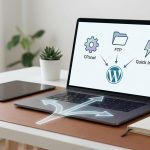
The fastest and most common way to install WordPress today is through the automatic installers offered by most hosting providers. Forget about downloads, FTP, and manual databases. Let's get to it!
Method 1: Automatic Installation with Softaculous (Recommended!)
This is the most direct way to have your WordPress up and running in a matter of minutes. Most cPanel hostings include a tool like Softaculous Apps Installer or Fantastico.
- Access your cPanel: Log in to your hosting control panel.
- Find the installer: Dentro de cPanel, busca la sección “Software” y haz clic en “Softaculous Apps Installer” o similar.
- Select WordPress: Verás el icono de WordPress. Haz clic en él y luego en “Instalar ahora”.
- Configure the details:
- Protocol: Elige “https://” si tienes un certificado SSL.
- Domain: Select the domain where you want to install it.
- Directory: Leave blank to install it in the root (e.g., yourdomain.com). If you want it to be yourdomain.com/blog, escribe “blog”.
- Site name and description: Give your website a name and a brief description.
- Admin username and password: Create strong credentials! Write them down.
- Admin email: Make sure it's a valid address.
- Haz clic en “Instalar”: In a few seconds, Softaculous will do all the heavy lifting for you.
Congratulations! You have just install WordPress. You will receive an email with the access details to your administration panel.
Method 2: Manual Installation (For the more adventurous)
Although the automatic method is the most efficient, knowing manual installation is useful for specific situations. It involves downloading WordPress, uploading it via FTP, creating a database, and configuring the wp-config.php file. It's a more technical process and takes longer, so to get started quickly, the automatic method is your best ally. For more details on this process, you can consult our advanced WordPress installation guide.
First steps post-WordPress installation
Once your site is active, it's time to shape it. Access your WordPress dashboard (usually yourdomain.com/wp-admin) with the credentials you created.
- General settings: Ve a “Ajustes” > “Generales” para revisar el título, la descripción y la zona horaria.
- Permalinks: En “Ajustes” > “Enlaces permanentes”, selecciona “Nombre de la entrada” para URLs amigables con el SEO.
- Install a theme: Ve a “Apariencia” > “Temas” y elige uno que se adapte a tu visión. Hay miles gratuitos y de pago.
- Plugins essential: Consider installing plugins for security (e.g., Wordfence), SEO (e.g., Yoast SEO), and cache (e.g., LiteSpeed Cache or WP Super Cache). Discover our selection of essential plugins for WordPress.
Remember that security and performance are crucial for your website's success. Dedicate time to configure these aspects from the beginning to avoid future problems.
Optimize your WordPress installation with Biblioweb
Now that you know how to install WordPress, the next step is to optimize it. At Biblioweb, we specialize in helping you get the most out of your platform. From choosing the best themes and plugins, up to advanced SEO and digital marketing strategies, we are here to guide you.
Explore our tutorials on how to configure Yoast SEO, improve your website's loading speed, or integrate WooCommerce for your online store. Our goal is for you not only to install but also to succeed with your website.
Conclusion: Your digital adventure starts now
As you can see, install WordPress doesn't have to be an odyssey. With the right steps and the right tool, you can have your site online in minutes. This is just the first step of your exciting journey in the digital world. At Biblioweb, we will accompany you at every stage, providing you with the knowledge and tools so that your project not only comes to life but flourishes.
Ready to start creating? The world awaits your ideas!
Frequently Asked Questions
Do I need to know how to program to use WordPress?
Absolutely not. WordPress is designed to be intuitive and easy to use, even for people without programming knowledge. Its graphical interface and visual page builders allow you to create and customize your site without writing a single line of code.
Is WordPress free?
Yes, the WordPress software itself is open source and completely free. However, you will need to invest in a domain and a web hosting service, which are the pillars for your site to be accessible on the internet. There are also themes and plugins paid ones that offer advanced functionalities, but there are many high-quality free options.
How long does it take to install WordPress with the automatic method?
With the automatic installation method (like Softaculous), the process of install WordPress usually takes between 1 and 5 minutes. Once the basic details are configured, the tool handles everything quickly, leaving you ready to start customizing your site.
Frequently Asked Questions
What is Installing WordPress?
Want to install WordPress without complications? Discover our step-by-step guide and start creating your website in minutes. Learn with Biblioweb and launch your pr
Why is it important to Install WordPress?
It helps you get better results and make informed decisions about Forget the manuals! 🤯 Install WordPress faster than a TikTok and start creating TODAY..
How to get started with Installing WordPress?
Follow the steps described in this article and apply the recommendations according to your case.